Deleting Objects
Objects can be deleted in three ways:
- Single object deletion
- Multiple selection and deletion of selected objects
- Deletion of all objects of a specified type
Single Object Deletion
Single object deletion allows you to delete one specific object.
To delete an existing object, follow these steps:
- Select
Objectsin theUser Behavior Analyticssection of the navigation menu - Select the required object type in the
Select typedropdown above the table - Find the required object in the objects table
- Click the
Deletebutton (trash icon) in the row of the required object

- In the confirmation modal, click
Delete
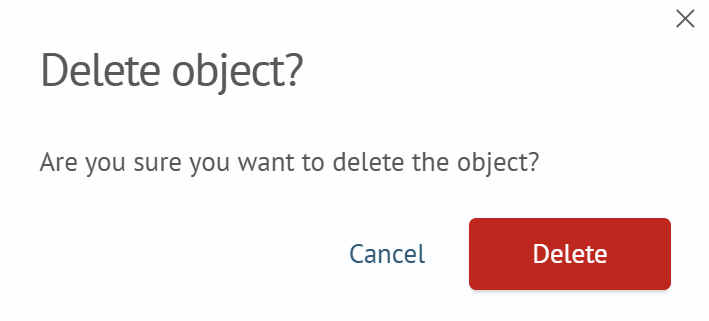
- The deleted object disappears from the objects list
warning
Performing these actions will result in the permanent deletion of the object.
Multiple Selection and Deletion of Selected Objects
Selecting and Deleting Multiple Objects
Multiple selection and deletion of selected objects allow you to delete objects in bulk.
To delete multiple objects:
- Select
Objectsin theUser Behavior Analyticssection of the navigation menu (Main menu-User Behavior Analytics-Objects) - Select the required object type in the
Select typedropdown above the table - Select objects to delete using checkboxes
- Click
Delete <n> objects. This button is above the table and appears only when objects are selected

- In the modal window, confirm deletion by clicking
Delete
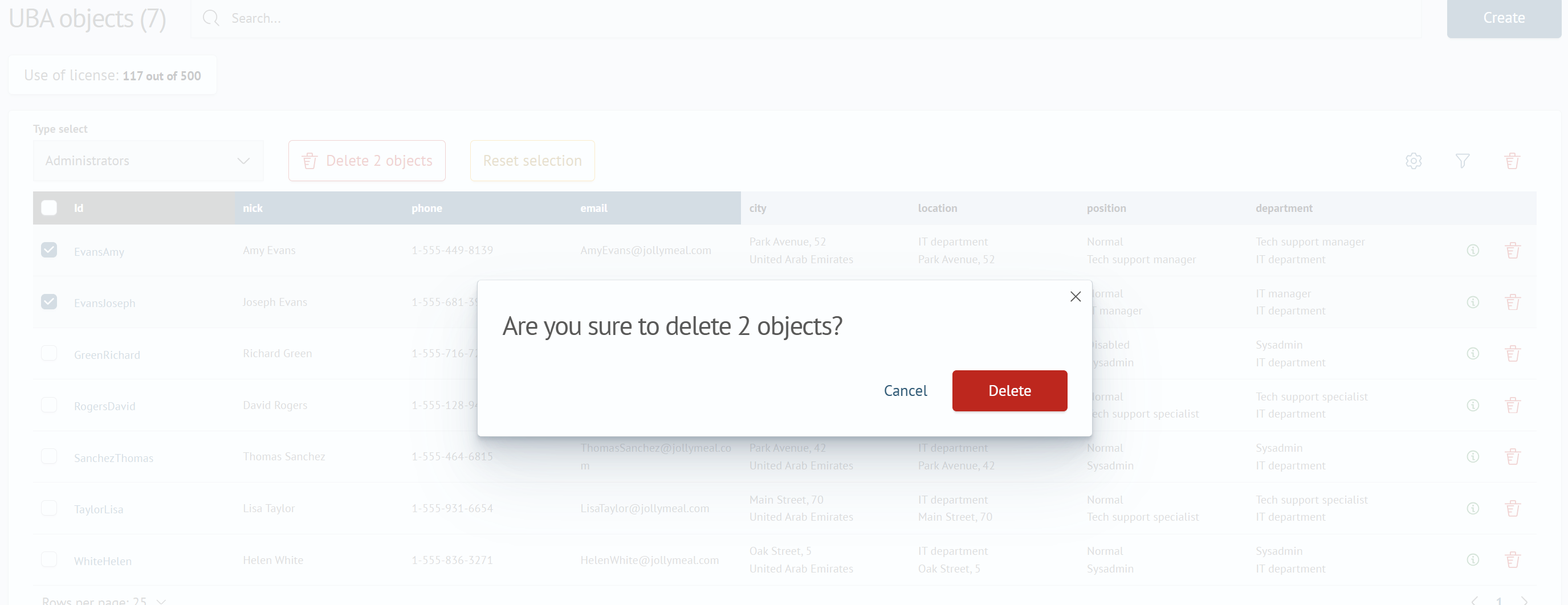
- Selected objects are removed from the objects list
warning
Performing these actions will result in the permanent deletion of the selected objects.
Deleting All Objects of a Selected Type
To delete all objects of a selected type:
- Select
Objectsin theUser Behavior Analyticssection of the navigation menu - Select the required object type in the
Select typedropdown above the table - Click
Clear all objects of this type(trash icon). This button is above the table next toSettingsandFilters
- In the modal window, confirm by clicking
Delete
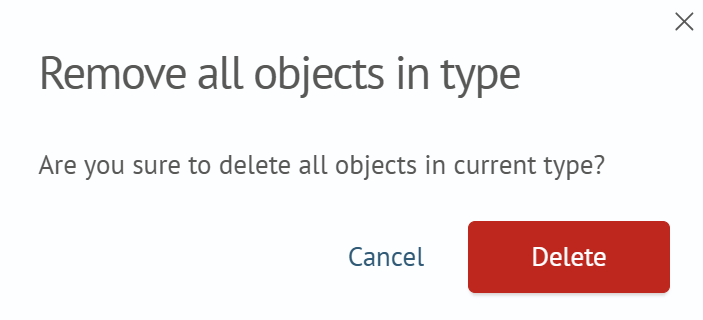
- All objects of the selected type are removed
warning
These actions permanently delete all objects of the selected type.