Populating the List of Objects
The list of objects is populated in two ways:
- Manual object creation and editing
- Automatic object fill using a scheduled configuration
Manual Population of Objects
Manual configuration allows you to create or edit an object by filling in the object's fields.
Manual Object Creation
To create a new object, follow these steps:
- Select the
Objectitem in the Main Menu under theUser Behavior Analyticssection - Select the required object type from the
Type Selectdropdown menu at the top of the table - Click the
Createbutton at the top of the page, to the right of the search field - Fill out the form in the modal window and click
Create
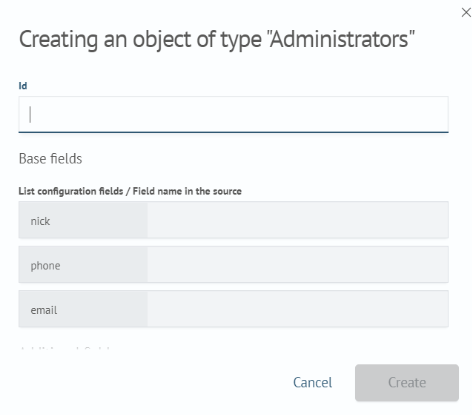
- The created object will appear in the list of objects
To edit an object, follow these steps:
- Select the
Objectitem in the Main Menu under theUser Behavior Analyticssection - Find the object in the object table
- Click the pencil icon in the far-right column
- The object fields will become editable; enter the necessary values
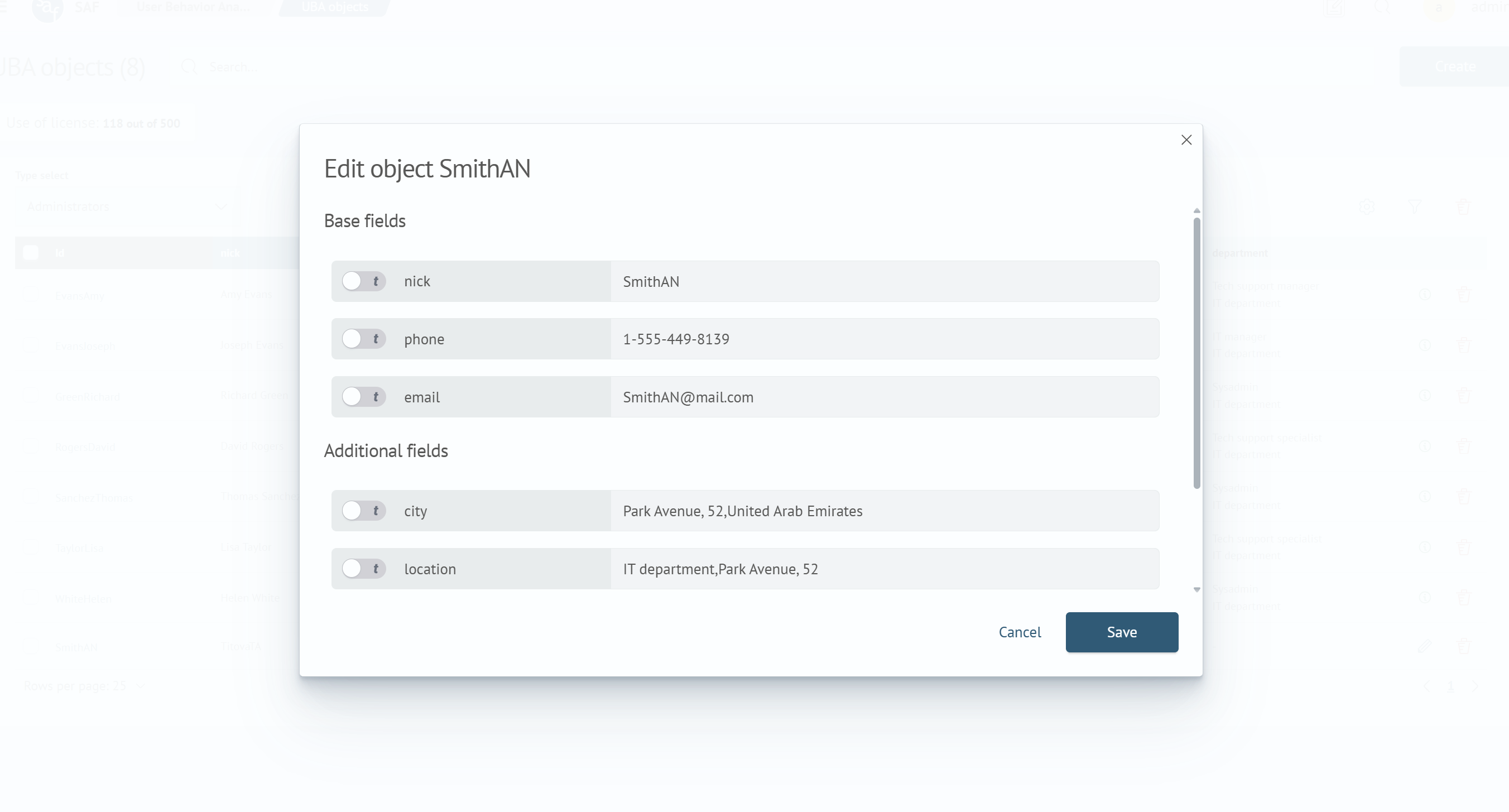
- Let's also translate this: Click the
Savebutton in the modal window to finish editing and apply the changes. - The edited object will be saved
Only manually created objects are available for editing. Generated objects are updated automatically and are not available for editing.
When creating and editing objects, two field types are available for each base and additional field:
- Text
- Array
Switch field modes with the toggle to the left of the field name.
For Text mode (left toggle position), the field looks as follows:

For Array mode (right toggle position), the field looks as follows:

Switching from the Array field type to the Text field type is only possible if the array contains no more than one element.
Avoid creating duplicates when creating or editing. Duplicates will not be added to the list of objects.
Automatic Population of Objects
Automatic population of objects allows you to avoid manually creating objects. The population occurs automatically according to the configured setup, which can be executed once or according to a schedule.
Data Sources
In the Index field, you can specify any index or index pattern that contains the entity identifier and the fields to copy to the UBA object. You can also use an aggregator index, such as an index created by the Inventory module or formed by another process.
You can use different sources for different purposes:
- a reference or prepared index to fill the objects list
- event indexes to build behavior profiles later
For example, you can load the users list from employees-current and profile user logins using auth-events-*.
Input Data Processing
The configuration processes data in the following order when it runs:
- Reads documents from the index or index pattern specified in
Index - Restricts the dataset using the time field and time range, if configured
- Applies the expression from
Filter - Extracts the value from
Object identifier field - Maps source fields to the object type base and additional fields
- Merges records with the same identifier and checks base fields for duplicates
- Applies the
Maximum number of objectslimit and writes the result to the UBA objects list
Source fields must exist in the selected index and contain compatible value types. For a string field that has a keyword subfield, exact matching typically uses that subfield, for example, user.id.keyword.
Filtering
The time filter and the expression in Filter apply together. The custom filter uses search command conditions without the search keyword:
user.id.keyword=="*" AND user.status.keyword=="active"
This example keeps only active users with a non-empty identifier. Specify the AND, OR, and NOT logical operators in uppercase. If the time field is empty, the query is not time-restricted; this option is suitable for an index that stores the current entity snapshot.
When reading an arbitrary index, use its actual field names, such as user.id.keyword. The base.*, advanced.*, and other.fields.* prefixes apply only to the data structure prepared by Inventory.
Entity Uniqueness and Deduplication
The resulting dataset must contain one entity for each unique key field value. This is required because:
Object identifier fieldis the primary deduplication key and must consistently identify one entity- each object type base field must be unique within that type; if any base field has the same value for different entities, UBA treats them as duplicates
- additional fields can repeat and do not participate in entity identification
If the input index contains multiple events for one user, prepare an unambiguous record set in advance. A basic option is to keep the latest record for each identifier with the dedup command and output only the required fields:
source auth-events-*
| search user.id.keyword=="*"
| dedup user.id.keyword sortby - @timestamp
| table user.id.keyword, user.name.keyword, user.department.keyword
You can validate this query in search and save its result to a dedicated prepared index on schedule. If additional field values differ between repeated records, sorting before deduplication makes record selection predictable.
Before filling objects, use Preview and verify that:
- every row has an identifier
- each identifier corresponds to one row
- a base field value does not belong to multiple entities
- result fields match the configuration mapping
Inventory as an Optional Aggregator
You can place Inventory between the source indexes and UBA when you need to combine multiple sources, normalize identifiers, enrich entities, or regularly produce a current snapshot without duplicates. If the source index already meets these requirements, the UBA object fill configuration can read it directly.
Configuration List
The configuration page contains a list of created configurations with the ability to filter using the Search field.
To open the configurations list page, select Object Fill Configurations in the User Behavior Analytics section of the navigation menu. The configurations list is a table with:
- Configuration name
- Configuration object type
- Index used by the configuration
- Run schedule
For each configuration, a list of actions is available (far-right column), which includes:
- Edit (opens configuration settings page)
- Configure permissions
- Clone configuration
- Enable/Disable configuration
- Delete configuration
For the selected (checkbox-marked) configurations, a list of actions is available (the Edit selected dropdown and the Delete <n> configurations button), which includes:
- Editing permissions for all selected configurations
- Enabling all selected configurations
- Disabling all selected configurations
- Deleting all selected configurations. The bulk delete button for configurations is displayed only when configurations are selected
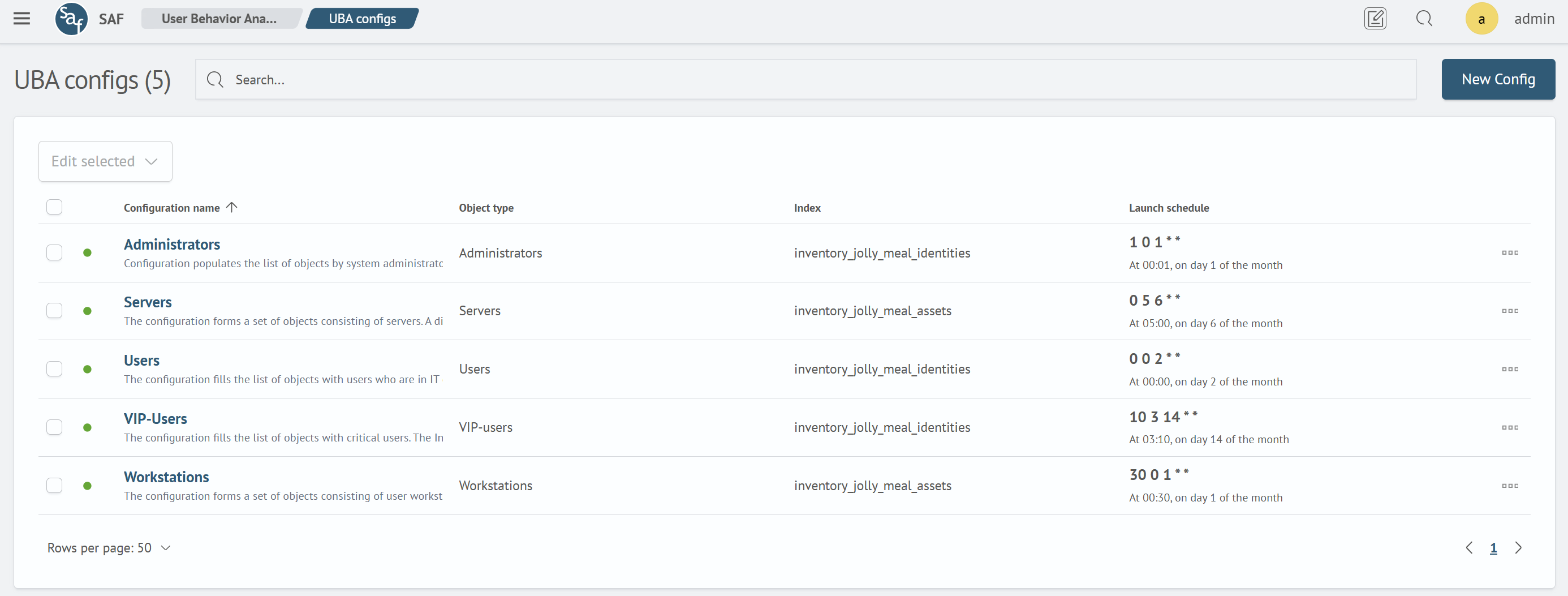
To create a new configuration, use the Create button located to the right of the Search field. To go to the editing page, click on the configuration name or select the corresponding item in the table's action menu.
Configuration Setup
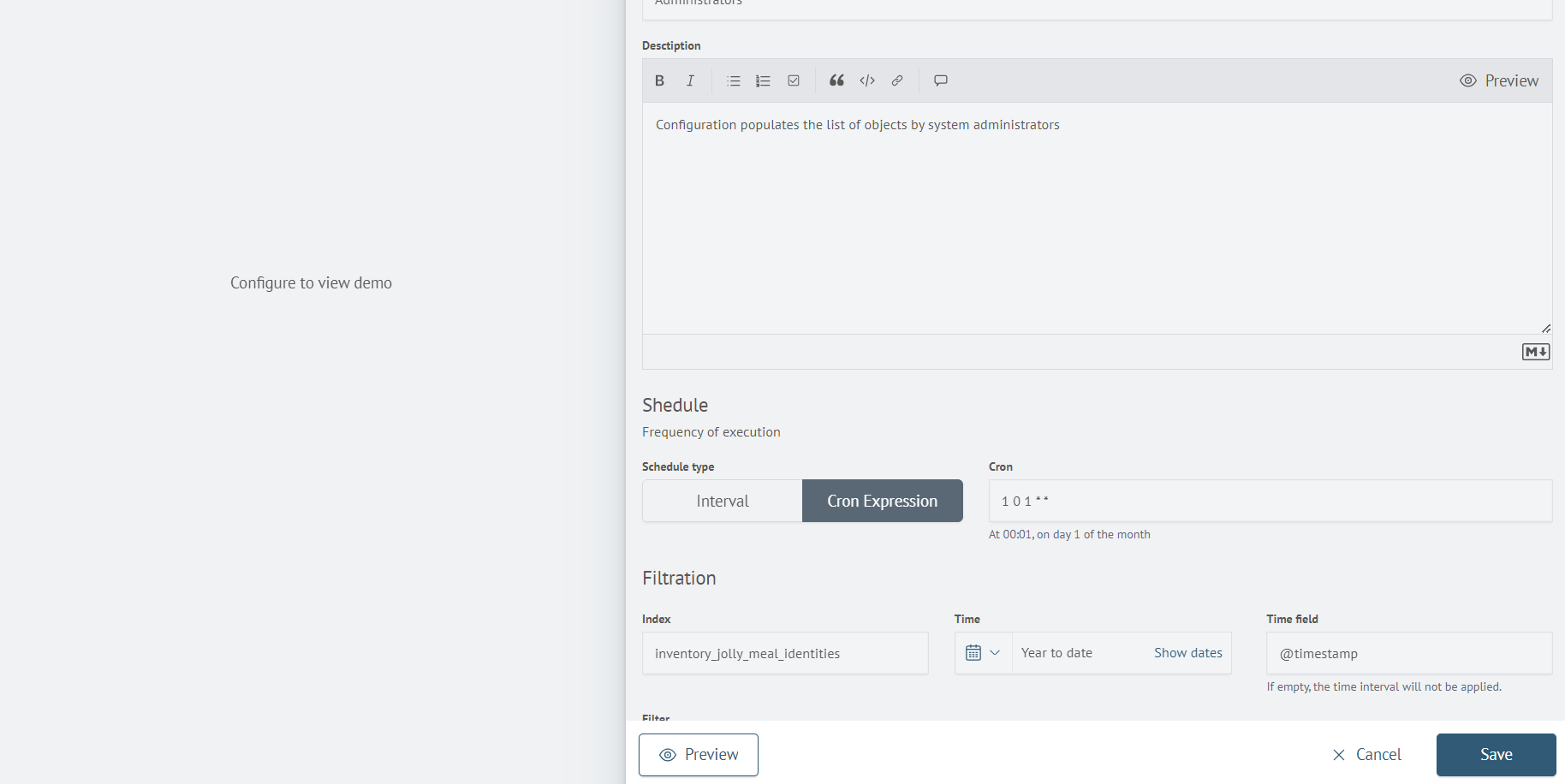
The configuration setup page is used to create and edit the parameters for populating objects. When you go to the configuration setup page, a panel with a form of parameters will open, containing the following sections:
- Basic
- Schedule
- Filtration
- Objects Settings
- Additional Settings
Basic
The basic settings section contains the following fields:
- Name - the name of the configuration
- Description - the description of the configuration. Intended for a detailed description of the configuration
Schedule
The schedule section is used to set the frequency of launching the configuration. There is an option to use:
- Interval
- Cron expression
Filtration
The filtering section is used to filter data processed for creating the list of objects and contains the following fields:
- Index from which data will be collected
- Time interval for filtering data by time
- Field containing the timestamp
- Filter - the expression by which filtering will be performed
Objects Settings
This section contains various settings for the resulting object:
- UBA object Type - determines the object's belonging to one of the types
- Id field - the field by which the object's uniqueness will be determined
- Basic and Additional Fields - fields that will be written to the resulting object
Additional Settings
This section contains the following configuration settings:
- Maximum number of objects: limit for objects written
- Lock duration
- Configuration run: enable/disable execution
Automatic Object Population Algorithm
After filling out the configuration settings form, click Save to save the configuration and execute it according to the specified schedule.
Click Preview to view the preliminary population of objects. The settings panel will be hidden, and a table of objects will appear. The page contains:
- Filtering found objects using the
Searchfield - Information about found objects (above the table)
- Objects table
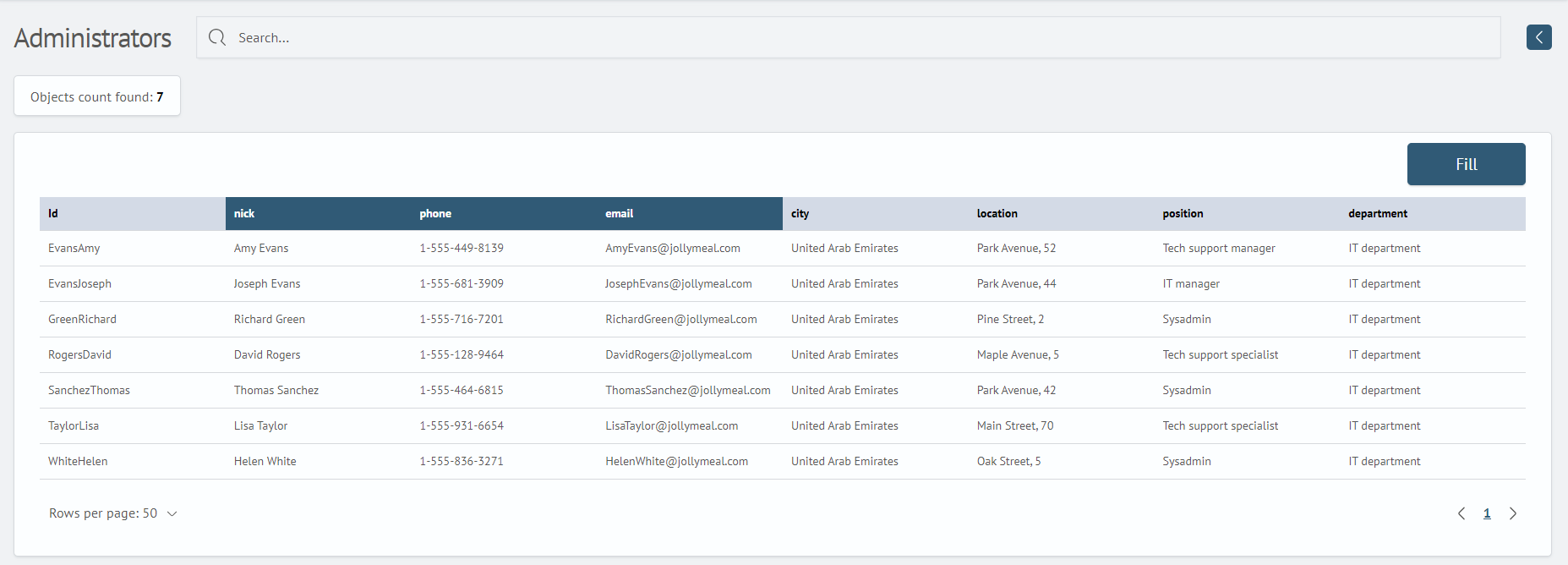
If you need to change settings, click the arrow icon to the right of the Search filter field. After preview, click Fill to populate the objects list. On success, a notification appears, and the following buttons become available: Save to save the configuration, Cancel to discard settings and return to the configurations list, and Go to objects list.
Automatic fill can detect duplicates. Duplicates are not included in the objects list, and you receive a notification.
The end-to-end configuration example provides a consistent set of settings for the object type, object fill, profiling policy, anomaly detection job, and scoring calculation.