Editing Incidents
This article discusses the capabilities for editing incidents. It describes how to modify data for both individual and groups of incidents, as well as the process of quickly managing their status within a workflow.
Editing a Single Incident
To edit a single incident:
- Click the button on the right side of the incident card

-
In the modal window that appears, make the necessary changes
-
Save the changes by clicking
Save
Editing Multiple Incidents
To edit multiple incidents:
-
Select incidents by checking the checkboxes in the left part of the cards of the required incidents
-
Click the
Edit Incidentsbutton -
In the modal window, change the common fields of the selected incidents:
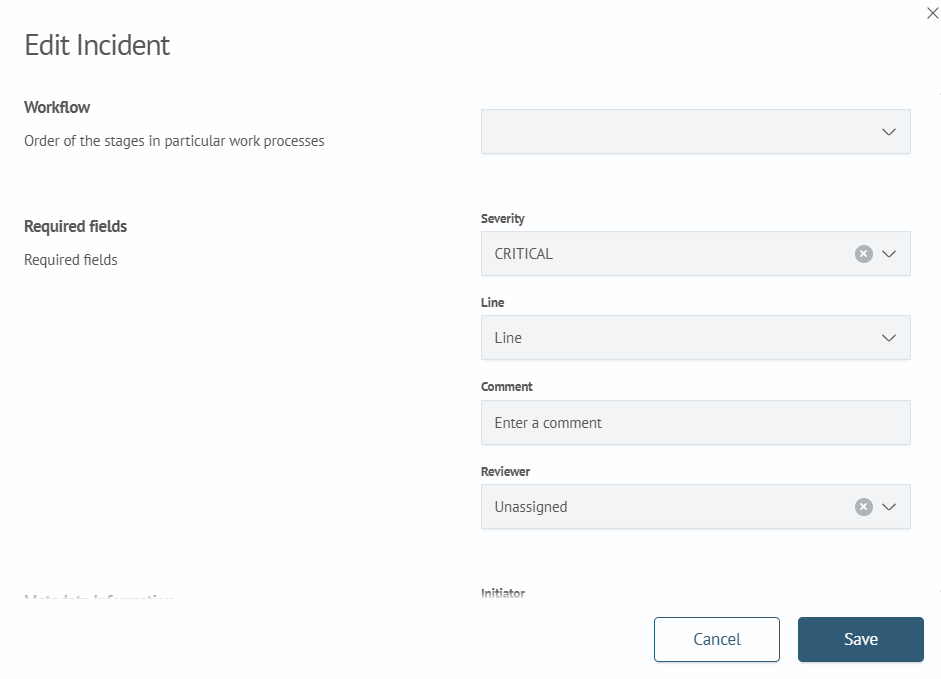
- Save the changes by clicking
Save
Changing Status
To change the status of the workflow:
- Expand the incident card. Buttons for changing the incident status will be displayed in the right part of the card according to the workflow settings

-
Select the desired transition
-
After changing the status, the change history will be displayed in the
Historysection on the right side of the incident card:
