Incident Card Overview
This article describes the structure and capabilities of the incident card.
General Description
Data in the card is divided into several sections (blocks). Below is a card with all possible blocks displayed:
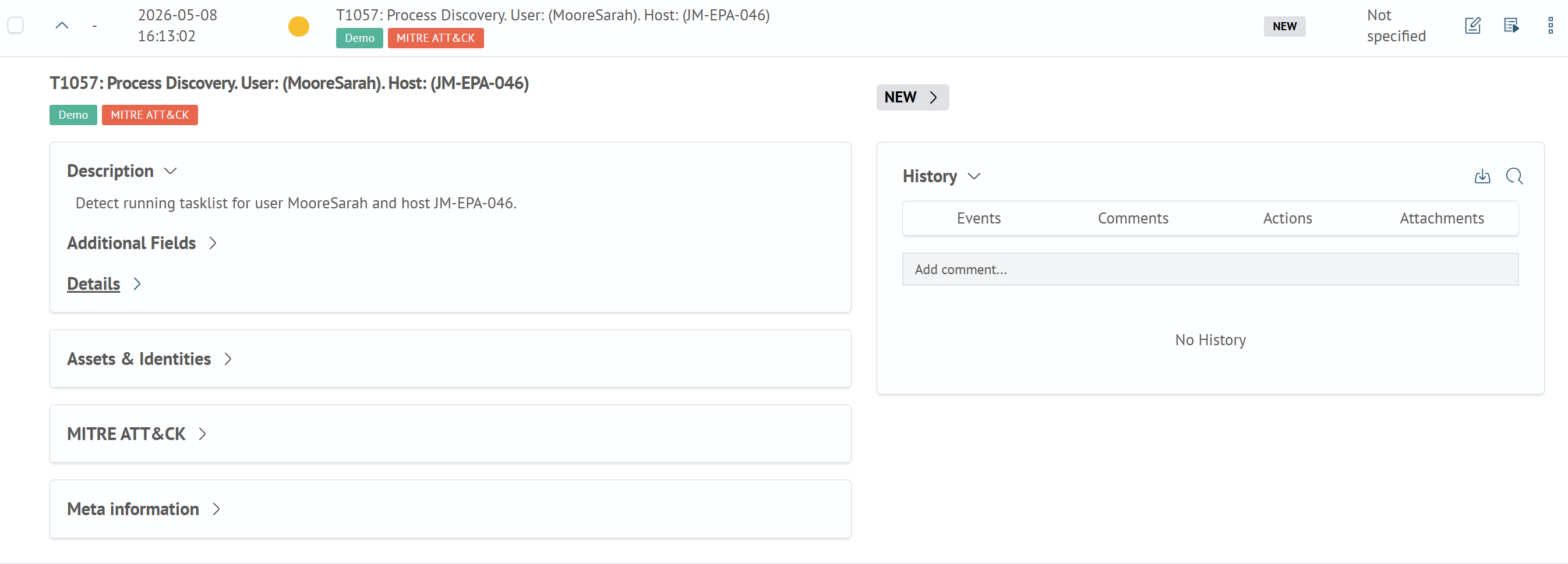
The following provides a detailed breakdown of each block.
Main Block and Metadata
The main block contains:
DescriptionAdditional Fields- fields from the search queryDetails- fields from the incident cardSLA— displays SLA policy statuses
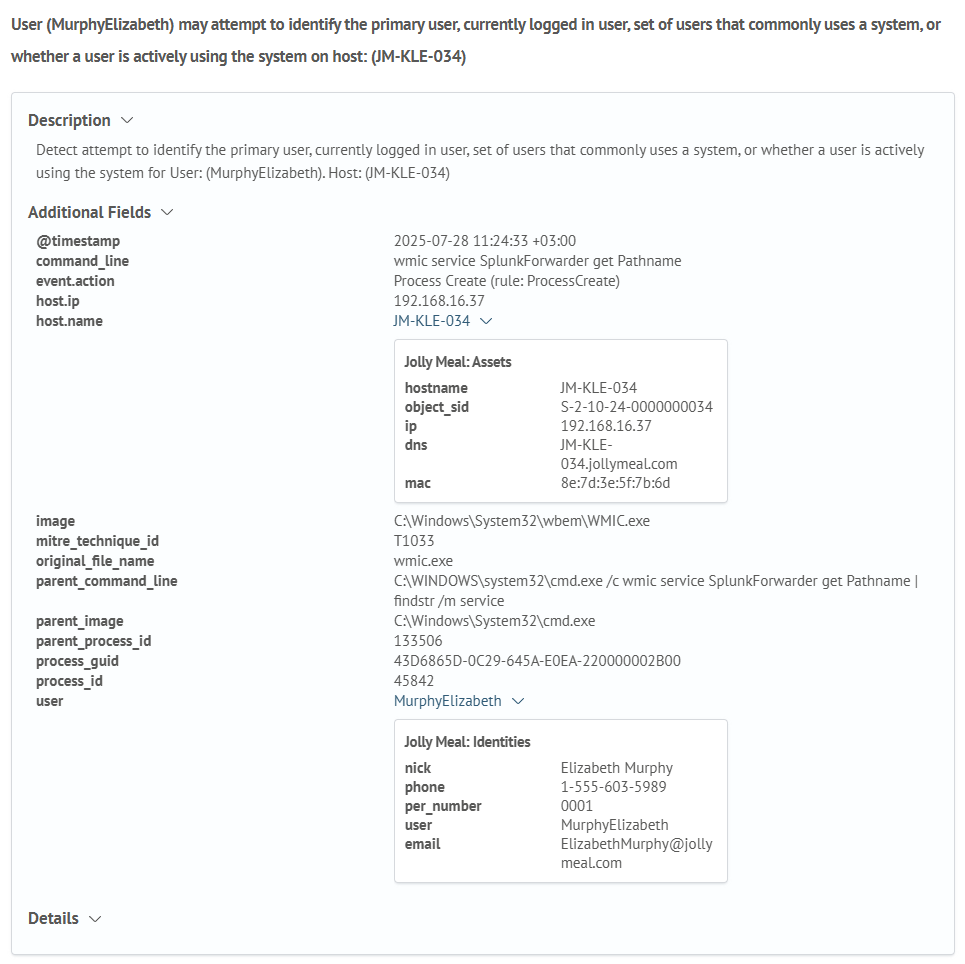
If Inventory Module Integration is configured for the incident's additional fields, assets linked to the incident will be displayed in the main block as cards.
For example, below shows the main information block with Inventory linkage by ID field (with two values), where each value has a corresponding asset:
Example of the SLA block:

If SLA policies have been calculated for an incident, an additional SLA section is displayed in the main block. It shows progress bars for the applied policies, including the start time, deadline, and current SLA status. The color of each progress bar depends on the SLA status:
- green for an active, canceled, or successfully completed SLA
- orange for a warning
- red for an SLA breach
SLA status transitions are recorded in the incident history. In the History section, you can see when an SLA policy was started, entered the warning state, was breached, canceled, or completed.
Click an SLA policy name to open a drop-down list and insert the policy into the search query.
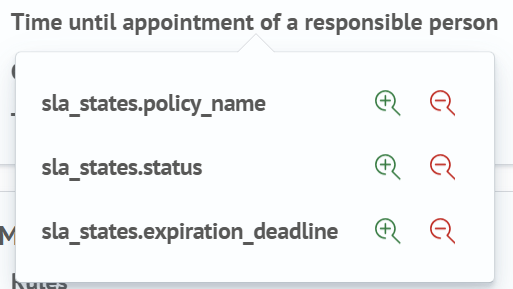
For more information, see Inserting system fields into a search query.
For details on configuring calculation rules, see SLA policies.
The Metadata block displays:
- Incident ID
- Name of the rule that generated the incident
- Incident creation time
- Additional information - list of notes mentioning this incident
Example of the Metadata block:

Inventory and Mitre ATT&CK Blocks
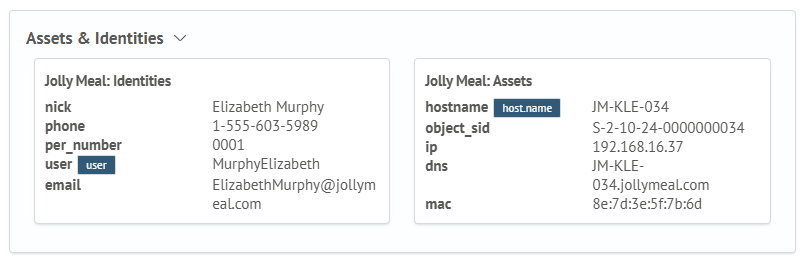
If Inventory Module Integration is configured for the incident's additional fields, assets linked to the incident will be displayed not only in the main block but also in the Inventory block - also as cards:
The Mitre ATT&CK block contains data about the linked Mitre object, if one exists:

Related Incidents Block
This block is a table that is empty by default for incidents. Using the Add button, you can populate this table with data from another incident. Addition occurs by ID.
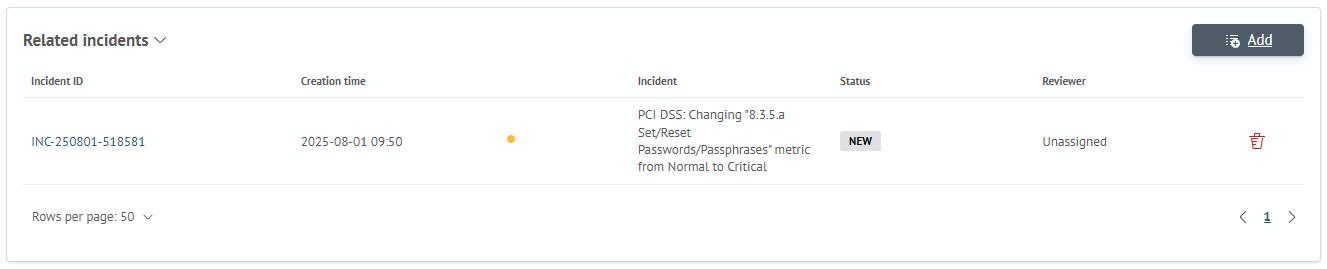
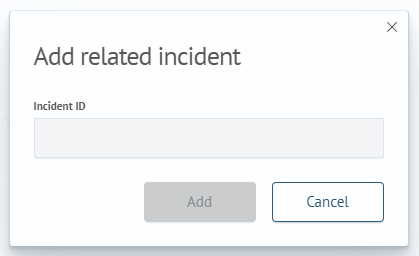
Incident linking works bidirectionally: the linked incident will also show a reference to the incident it's connected to.
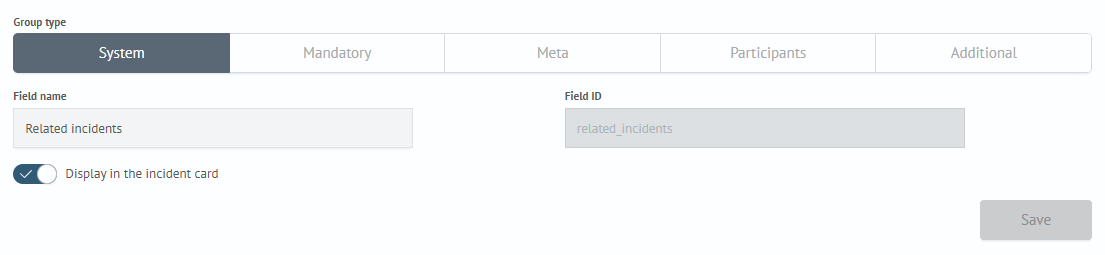
If this functionality isn't needed, it can be disabled in the Module Settings section by turning off the Display in the Incident Card setting for the Related Incidents field:
History Block
The incident history contains information about status changes or field modifications during editing, added comments, and results of executed active actions:
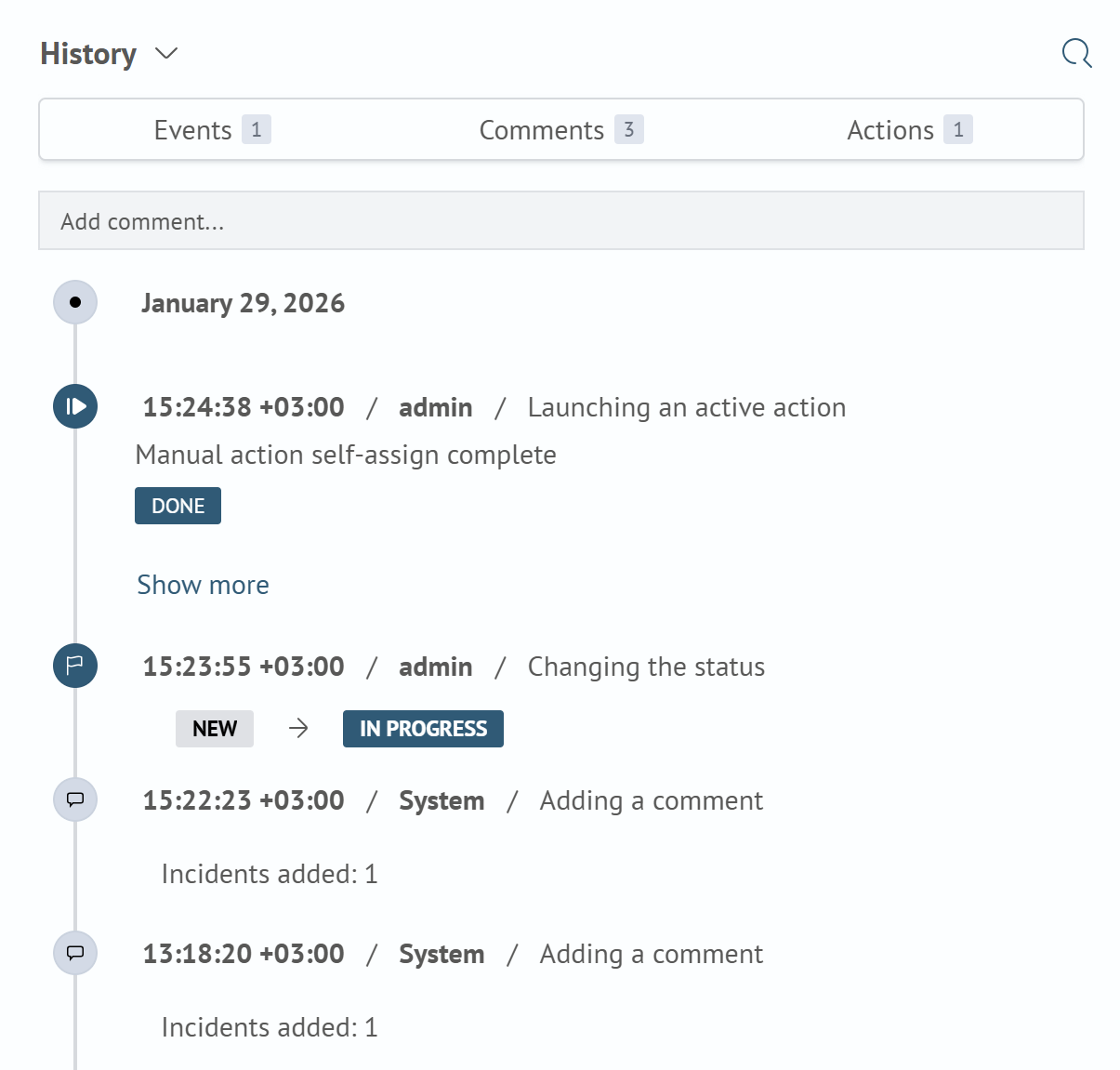
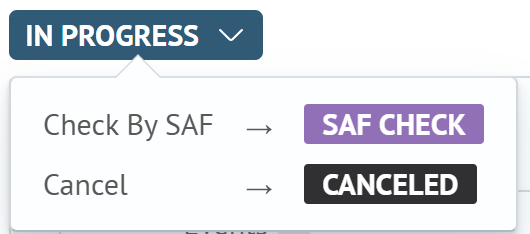
To change the incident status, you need to click on the status button and select the desired transition from the dropdown list.
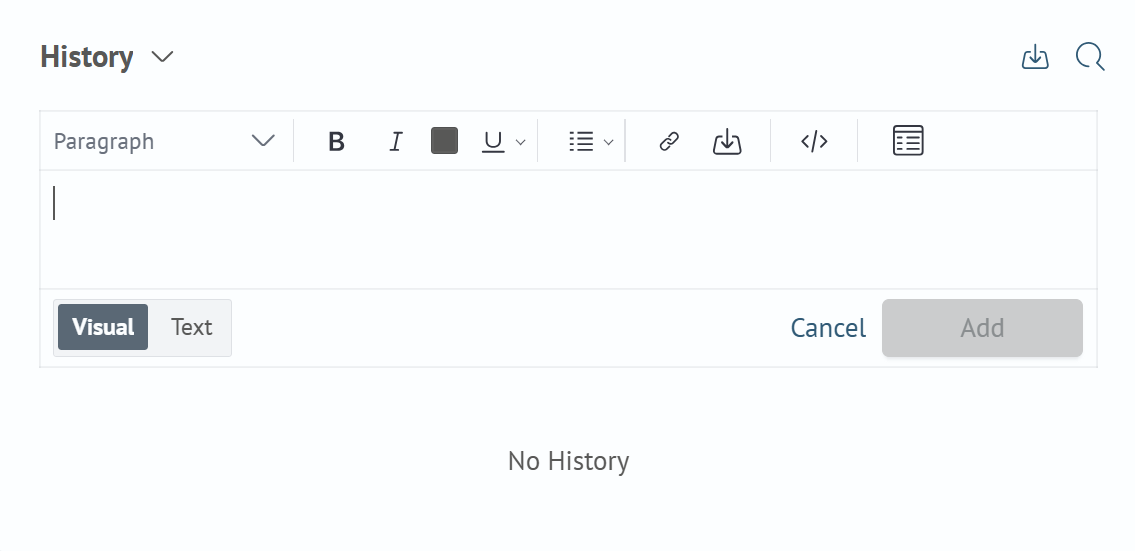
Also, files can be attached to an incident. This can be done either through the history block, or through the comment text editor, as well as through bulk incident editing.
When adding through the text editor, files can be added using the ctrl+v key combination. File names will be rendered in the comment text, and images will be displayed both in the History block, and in the Comment column, where the last comment to the incident is displayed.
Incident Manager module can be configured in the Module Settings - Incident Manager - File Storage section.