Field Configuration
General Description
Fields for incidents can be configured in the Search Anywhere Framework module settings section. To do this, go to Main Menu - System Params - Module Settings - Incident Manager - Incident Fields.
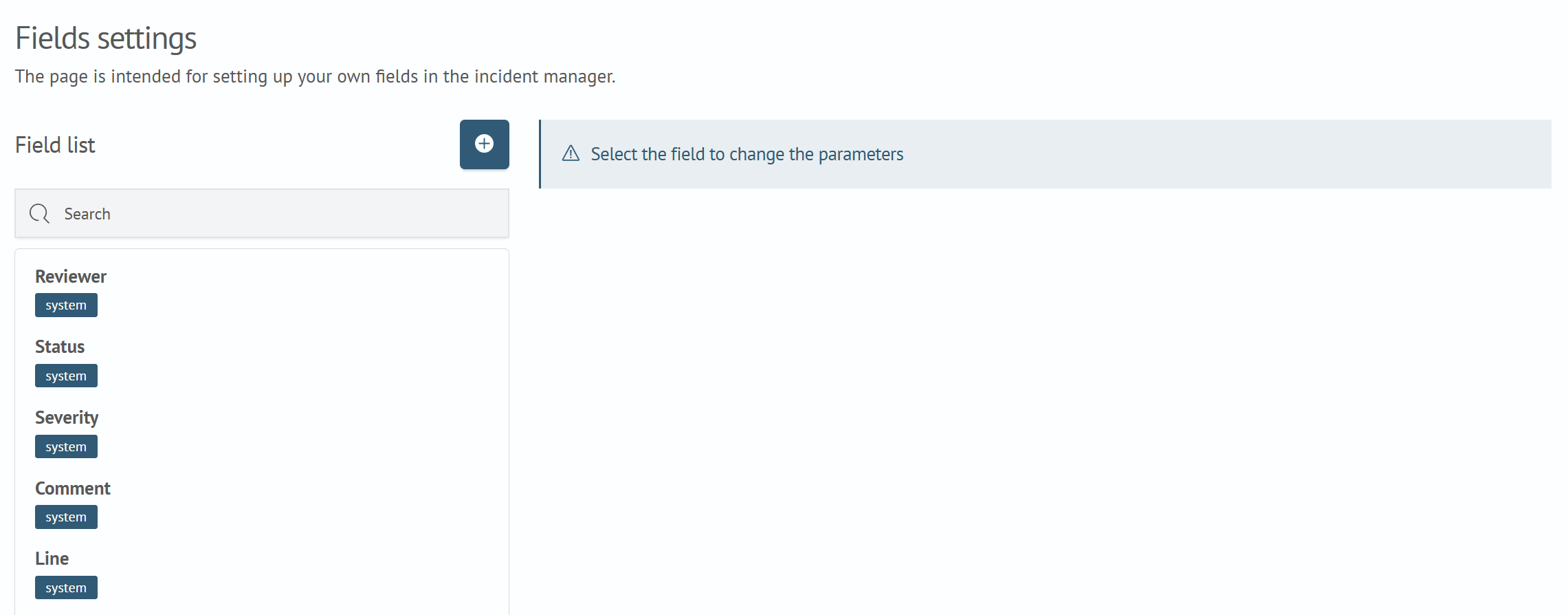
In the settings interface, fields can be configured. By default, the system provides the following fields:
- Assignee
- Status
- Severity
- Related Incidents
System Field Configuration
All fields except status are available for editing:
Assignee— you can configure the list using a dynamic query, more details in the corresponding section Dynamic FiltersStatus— not configurableSeverity— allows you to configure incident severity levels
Configuring Severity Levels
Severity is a system field that indicates the incident threat level and helps determine the urgency and order of response. The severity level is displayed as a colored marker in the incident list and card. It is also used for incident filtering and can be considered in SLA policy rules.
By default, Incident Manager has the following levels:
| Name | Value | Color |
|---|---|---|
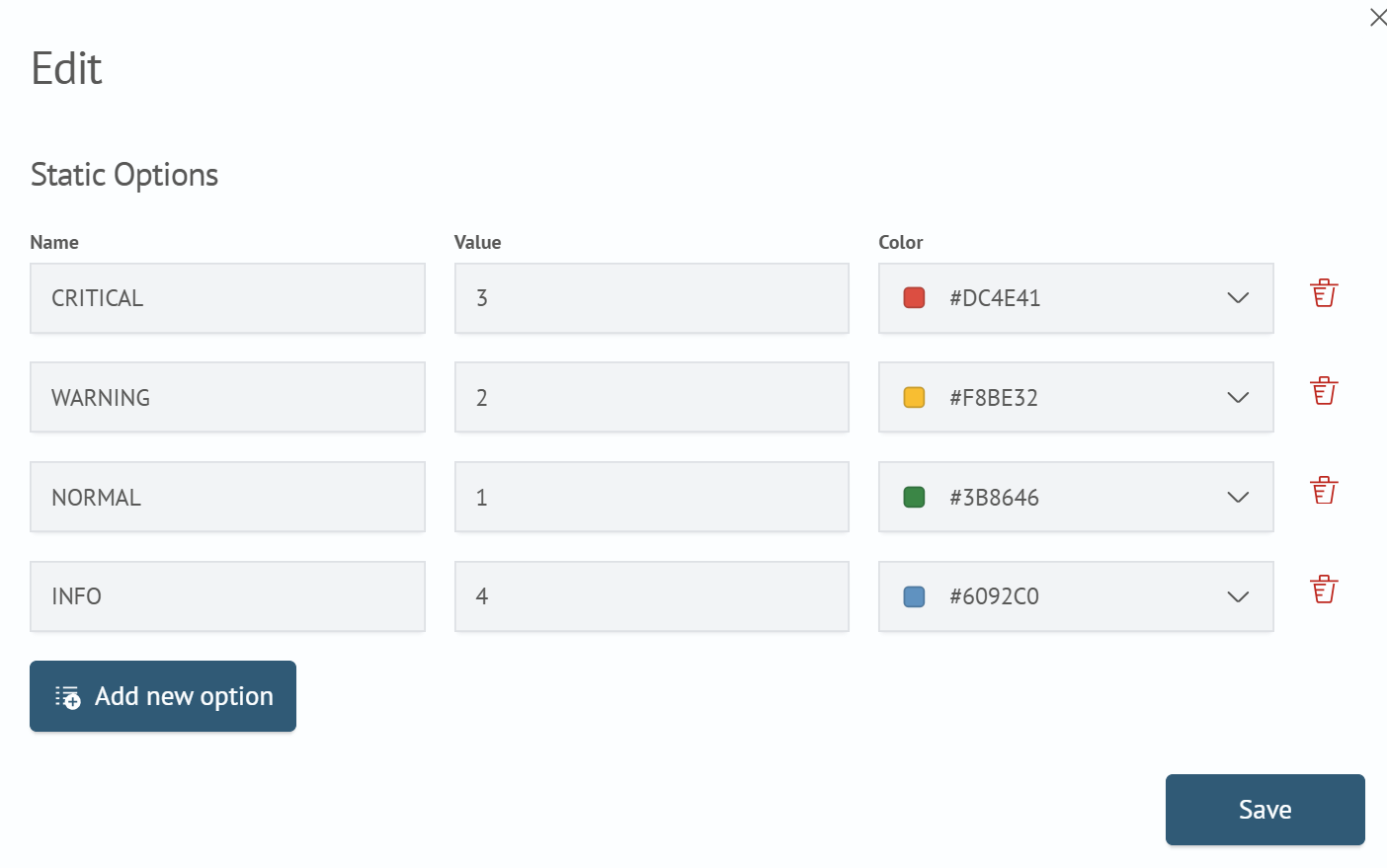
Alarm | 3 | red (#DC4E41) |
Warning | 2 | yellow (#F8BE32) |
Normal | 1 | green (#3B8646) |
Information | 4 | blue (#6092C0) |
To configure severity levels:
- Navigate to
Main Menu-System Settings-Module Settings-Incident Manager-Incident Fields - Select the
Severityfield in the system fields list - In the edit window, change the name, value, or color of an existing level. To create a level, click
Add; to delete a level, click the trash icon in the corresponding row - Close the edit window and save the field settings
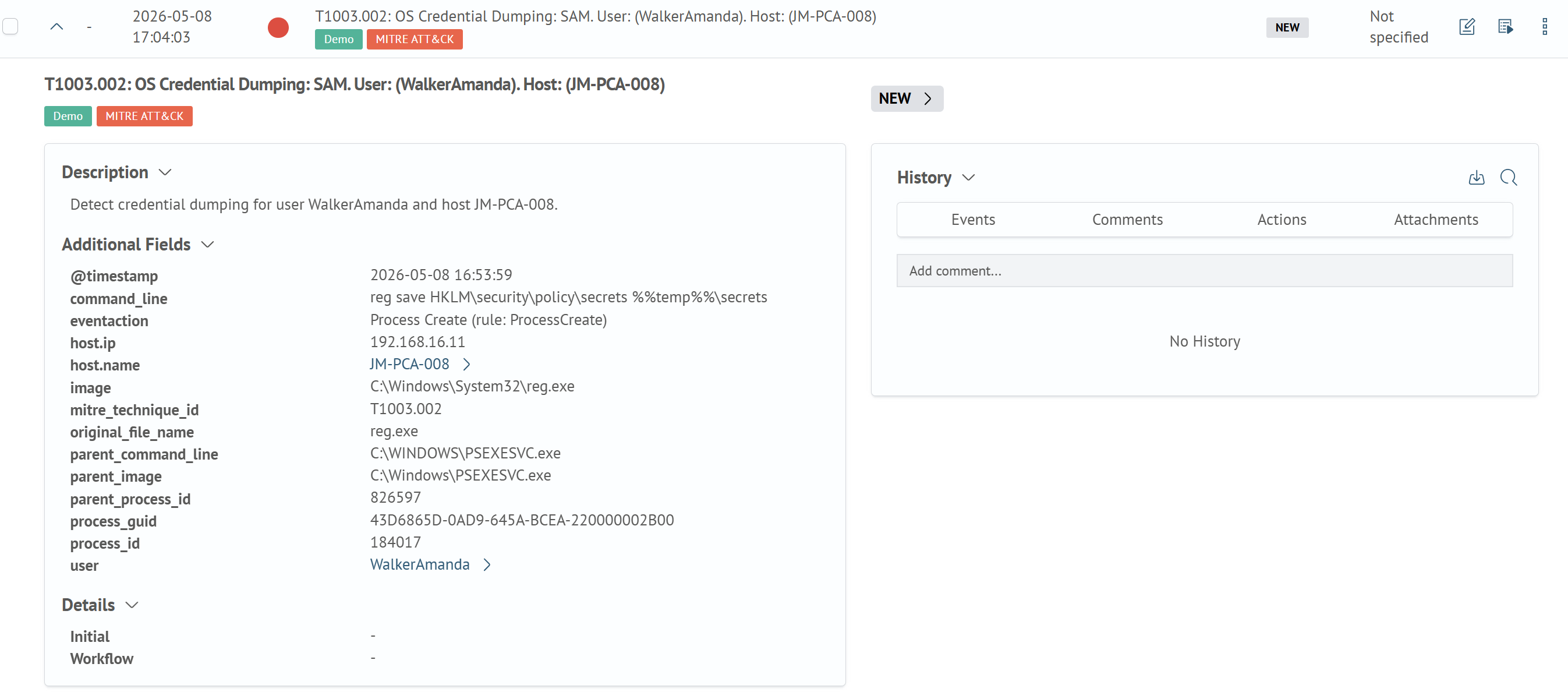
The level color is displayed as a round marker next to the incident. In the image below, the red marker corresponds to the Alarm level.
The level value is stored in the incident's severity field. Do not change the value identifier of a level that is already in use or delete such a level while it is assigned to incidents. Otherwise, the stored value may stop displaying correctly and participating in filtering.
CRUD Requests for Severity Levels
Severity level settings are stored in the editFields.severity.values array of the Incident Manager settings document. Levels are retrieved with GET; creation, modification, and deletion are performed with PUT using the complete current editFields.severity object.
Run the requests in the Main Menu - System Settings - Dev Tools console.
Before making changes, save the response to the GET request. The examples below contain the standard levels and one custom level. If other levels are already configured, add them to the values array in the request; otherwise, they will be deleted. Copy the remaining severity object parameters from the response without changes.
Retrieving Severity Levels (Read)
GET _core/im_settings/incident-manager-settings
The complete severity setting object is contained in the following part of the response:
{
  "editFields": {
    "severity": {
      "runame": "Criticality",
      "multiedit": true,
      "values": [
        {
          "color": "#DC4E41",
          "textRu": "CRITICAL",
          "text": "CRITICAL",
          "value": "3"
        },
        {
          "color": "#F8BE32",
          "textRu": "WARNING",
          "text": "WARNING",
          "value": "2"
        },
        {
          "color": "#3B8646",
          "textRu": "NORMAL",
          "text": "NORMAL",
          "value": "1"
        },
        {
          "color": "#6092C0",
          "textRu": "INFO",
          "text": "INFO",
          "value": "4"
        }
      ],
      "name": "severity",
      "show": false,
      "default_value": "1",
      "placeholder": "placeholderText",
      "type": "select",
      "enabled": true,
      "group": "main",
      "order": 7
    }
  }
}
Severity level parameters:
| Parameter | Description |
|---|---|
color | marker color in HEX format |
textRu | name in the Russian-language interface |
text | displayed level name |
value | unique string value of the level in severity |
The remaining parameters apply to the severity system field as a whole. When performing CRUD requests for levels, preserve their values from the GET response. The default_value parameter must contain the value of an existing level assigned by default.
Creating a Severity Level (Create)
The example creates an Emergency level with the value 5. Retrieve the current settings and add the new object to the values array, preserving all existing levels and the remaining severity object parameters:
PUT _core/im_settings/incident-manager-settings
{
  "editFields": {
    "severity": {
      "runame": "Criticality",
      "multiedit": true,
      "values": [
        {
          "color": "#8B1E3F",
          "textRu": "accident",
          "text": "accident",
          "value": "5"
        },
        {
          "color": "#DC4E41",
          "textRu": "CRITICAL",
          "text": "CRITICAL",
          "value": "3"
        },
        {
          "color": "#F8BE32",
          "textRu": "WARNING",
          "text": "WARNING",
          "value": "2"
        },
        {
          "color": "#3B8646",
          "textRu": "NORMAL",
          "text": "NORMAL",
          "value": "1"
        },
        {
          "color": "#6092C0",
          "textRu": "INFO",
          "text": "INFO",
          "value": "4"
        }
      ],
      "name": "severity",
      "show": false,
      "default_value": "1",
      "placeholder": "placeholderText",
      "type": "select",
      "enabled": true,
      "group": "main",
      "order": 7
    }
  }
}
Changing a Severity Level (Update)
In the example, the name and color of the created level are changed. The value remains unchanged:
PUT _core/im_settings/incident-manager-settings
{
  "editFields": {
    "severity": {
      "runame": "Criticality",
      "multiedit": true,
      "values": [
        {
          "color": "#7A0019",
          "textRu": "Critical accident",
          "text": "Critical accident",
          "value": "5"
        },
        {
          "color": "#DC4E41",
          "textRu": "CRITICAL",
          "text": "CRITICAL",
          "value": "3"
        },
        {
          "color": "#F8BE32",
          "textRu": "WARNING",
          "text": "WARNING",
          "value": "2"
        },
        {
          "color": "#3B8646",
          "textRu": "NORMAL",
          "text": "NORMAL",
          "value": "1"
        },
        {
          "color": "#6092C0",
          "textRu": "INFO",
          "text": "INFO",
          "value": "4"
        }
      ],
      "name": "severity",
      "show": false,
      "default_value": "1",
      "placeholder": "placeholderText",
      "type": "select",
      "enabled": true,
      "group": "main",
      "order": 7
    }
  }
}
Deleting a Severity Level (Delete)
To delete the level with the value 5, pass an array without the corresponding object:
PUT _core/im_settings/incident-manager-settings
{
  "editFields": {
    "severity": {
      "runame": "Criticality",
      "multiedit": true,
      "values": [
        {
          "color": "#DC4E41",
          "textRu": "CRITICAL",
          "text": "CRITICAL",
          "value": "3"
        },
        {
          "color": "#F8BE32",
          "textRu": "WARNING",
          "text": "WARNING",
          "value": "2"
        },
        {
          "color": "#3B8646",
          "textRu": "NORMAL",
          "text": "NORMAL",
          "value": "1"
        },
        {
          "color": "#6092C0",
          "textRu": "INFO",
          "text": "INFO",
          "value": "4"
        }
      ],
      "name": "severity",
      "show": false,
      "default_value": "1",
      "placeholder": "placeholderText",
      "type": "select",
      "enabled": true,
      "group": "main",
      "order": 7
    }
  }
}
After each change, run the GET request again and check the contents of the editFields.severity.values array.
Creating New Fields
To create a new field, you need to:
- Click the
+button - Fill in the parameters of the new field
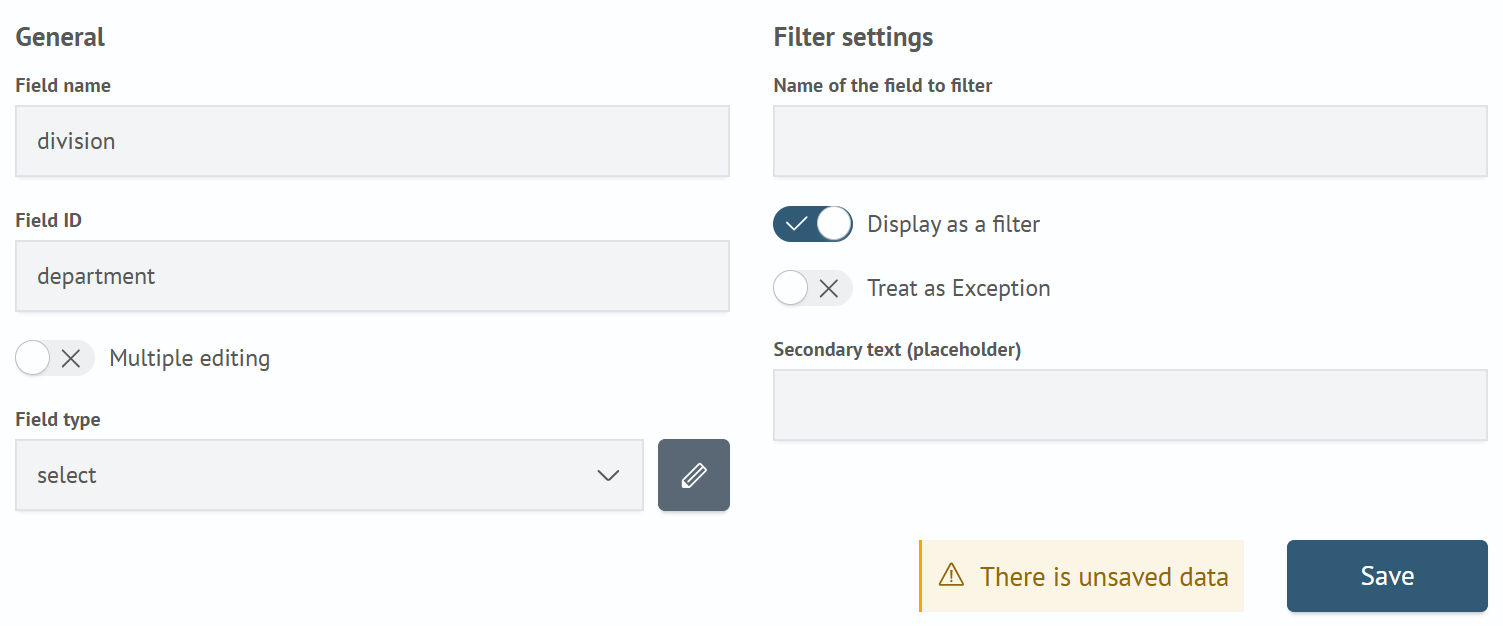
General parameters:
Field Name- name of the new fieldField Identifier- system name of the new fieldBulk Editing- participation of the field in bulk incident editingField Type- data type of the new field (available types are listed in the section Available Field Types)
Filtering settings:
Field Name for Filters- name of the field used for filtering in the incident managerDisplay as Filter- whether to display the new field as a filter for searchingUse as Exclusion- option that controls filter operation. When enabled, filtering checks for inequality of valuesHelper Text (placeholder)- example or hint that disappears when text is entered
- Click the
Savebutton
Now this field can be selected in Incident Type.
Available Field Types
- Number
- Date and Time
- Text
- Multiline Text
- Markdown
- Multi-Select
- Select
Dynamic Filters
For fields with type select and multi-select, the ability to use Dynamic Options is available. To do this, you need to specify a search query and time parameters, as well as fields whose values will be used as the key and filter value.
Example
Let's create a field test_select, enable the options Display in Incident Card and Display as Filter and set Field Type - Select. We'll specify a static filter value where the key will be equal to test and the value 10. In addition, we'll specify dynamic options. When executing the specified query, the key will take the value test_dynamic and the filter value will become equal to 1.
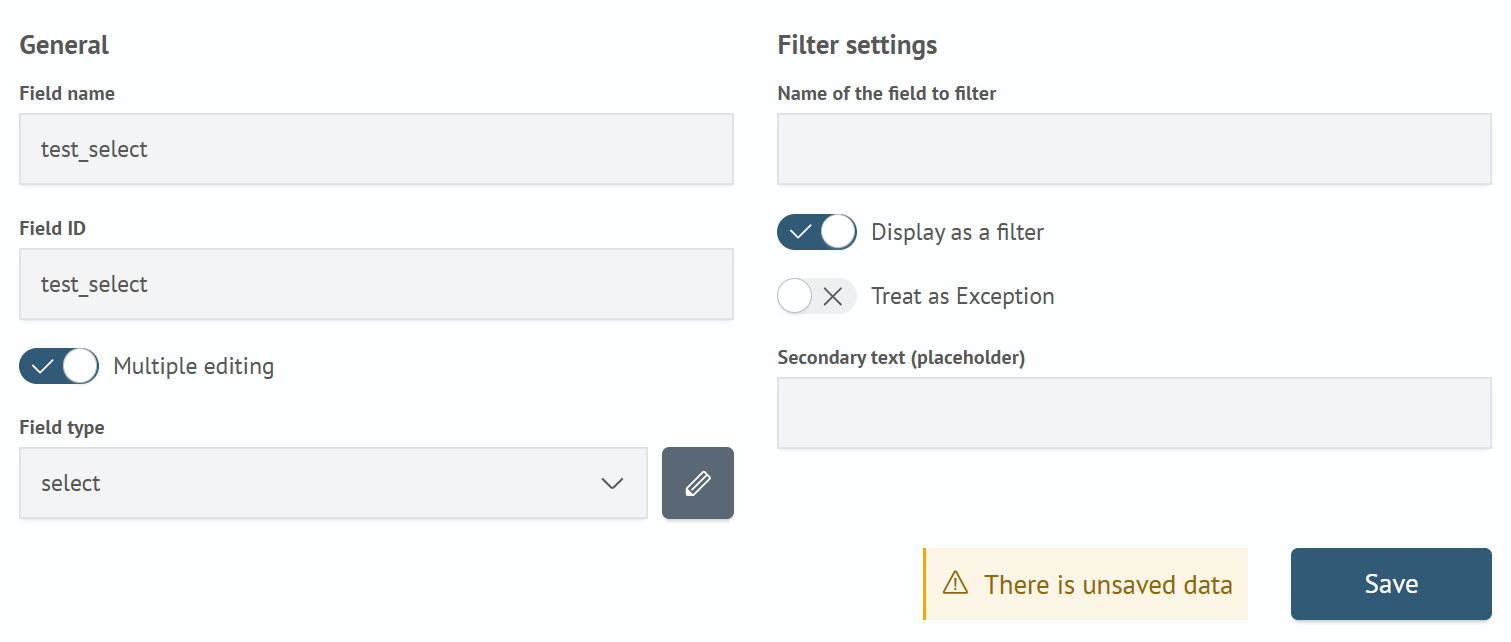
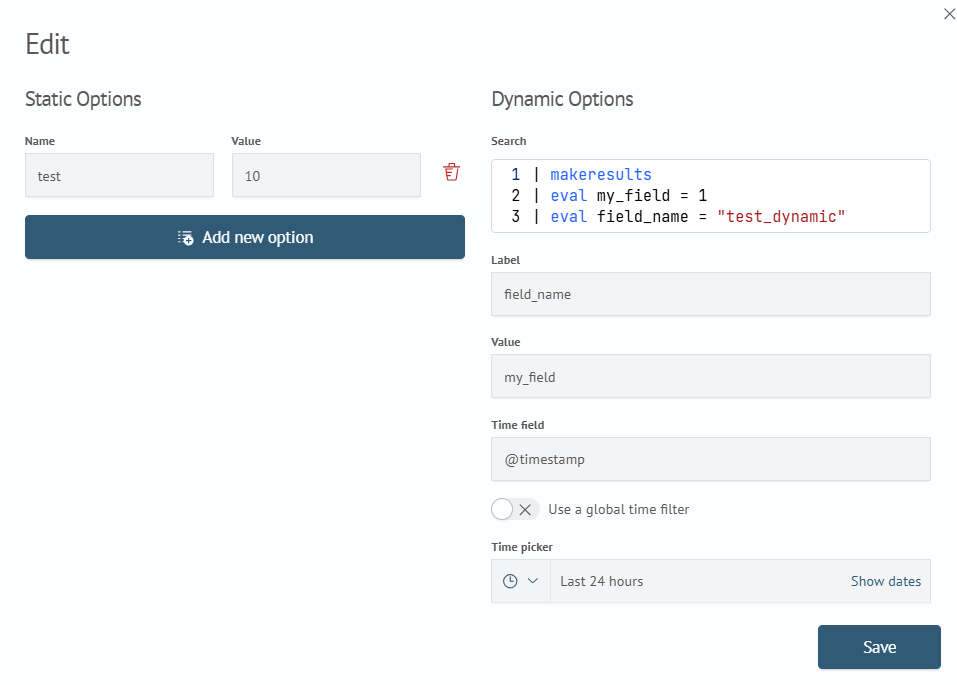
If after setup you open the created filter, it will have values test and test_dynamic.
When selecting them, incidents will be filtered where the value of the test_select field equals 10 or 1 respectively.
Tokens
Description
Token - a variable whose value is substituted into the query in the Dynamic Options section for fields of type select and multi-select. A variable that provides flexible configuration of data filtering on the Incident Manager page.
Using tokens allows making incident filtering more dynamic and convenient for users.
Token Creation
Tokens are created in incident field settings. Similarly to tokens used in dashboards, the main field for its configuration is System Name - a unique token name by which it will be identified.
For fields in the incident card, the system name is the Field Identifier:
Token Prefix- value that will be added before the token valueToken Suffix- value that will be added after the token value

For fields of type multi-select, there are fields for settings:
Token Value Prefix- value that will be added before each value contained in the activemulti-selectlistToken Value Suffix- value that will be added after each value contained in the activemulti-selectlistSeparator- value that will be added between values in the activemulti-selectlist

Usage in Queries
After creating a token, it can be used in queries in the Dynamic Queries section.
To do this, you need to:
- Create a new field/open an existing one with type
selectormulti-select - In the dynamic options section, in the
searchitem, write a search query containing the token - Save the field in the incident card
Now when changing the filter that acts as a token in the dynamic options of other filters, filters dependent on the token will automatically update the value options.
For using tokens in Search Anywhere Framework panel queries, the following syntax is provided:

Example search query using a token:
source winlog_auth
| search $event_code$
Exclusion Filters
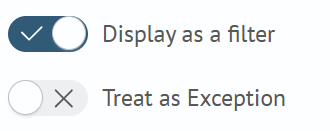
For all fields, the ability to switch to exclusion filter mode is available. In normal mode, incidents are searched where the field value corresponds to the value set in the filter. In exclusion filter mode, the result of the search query is a list of incidents that contain a field value different from the value in the corresponding filter.
To enable exclusion filter, you need to select the Use as Exclusion option in the card field settings.
Editing Existing Fields
To edit field parameters, you need to:
- Select the field in the list and click on it
- The editor for the selected field parameters will appear on the right side, make changes
- Click the
Savebutton
Deleting Fields
To delete a field, click the × button next to the field name. In the dialog box that appears, confirm the action by clicking the Delete button or cancel the action by clicking the Cancel button.