Installing the Content Module
Table of Contents
General Description
The AI Observability content module is delivered as the ai_observability.zip archive with ready-to-use objects. Install it through Content Management.
Module Composition
| Object Type | Objects |
|---|---|
| Dashboards | 12 dashboards: Infrastructure Overview, Agents, Traces, LLM Costs, Service Metrics, GPU Status, Codex, and five Claude Code dashboards: Overview, Organization, Team and Productivity, Member, Subscription and Billing |
| Scheduled Jobs | 18 jobs: GPU inventory, eight jobs that populate Claude Code lookups, three subscription-limit monitoring jobs, and six disabled examples of queries using the api command |
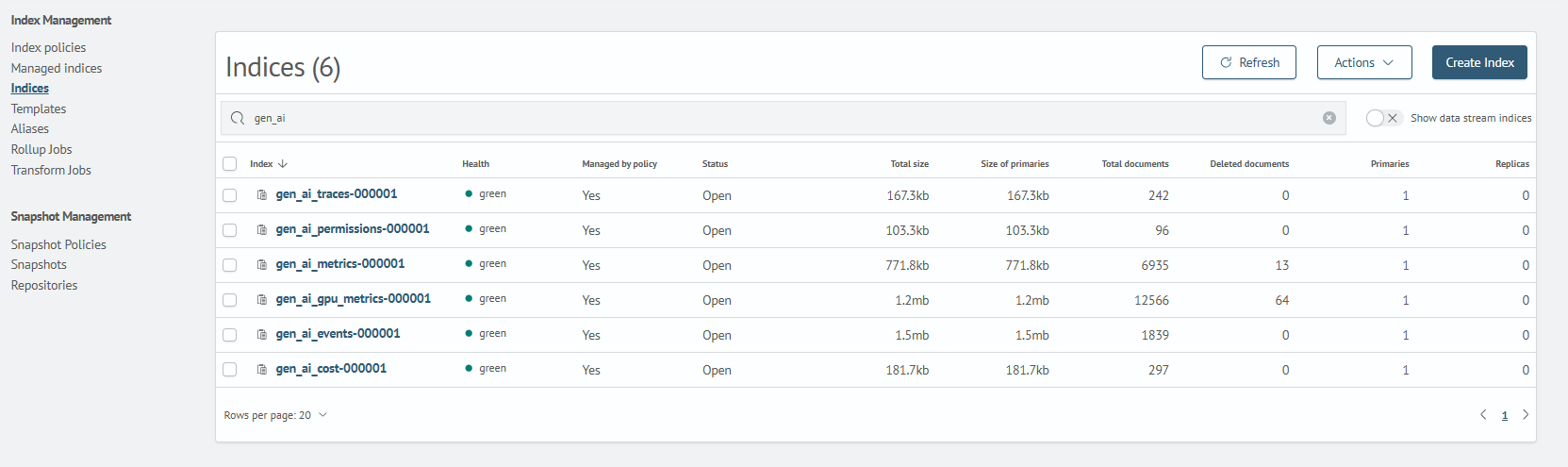
| Runtime Indexes | gen_ai_traces, gen_ai_events, gen_ai_metrics, gen_ai_gpu_metrics, gen_ai_cost |
| Tags | Agent Telemetry, Anthropic, Claude, Codex, DCGM Exporter, GPU Metrics, Gen AI, LLM Cost, Metric, NVIDIA, OpenAI, OpenTelemetry, Trace Span |
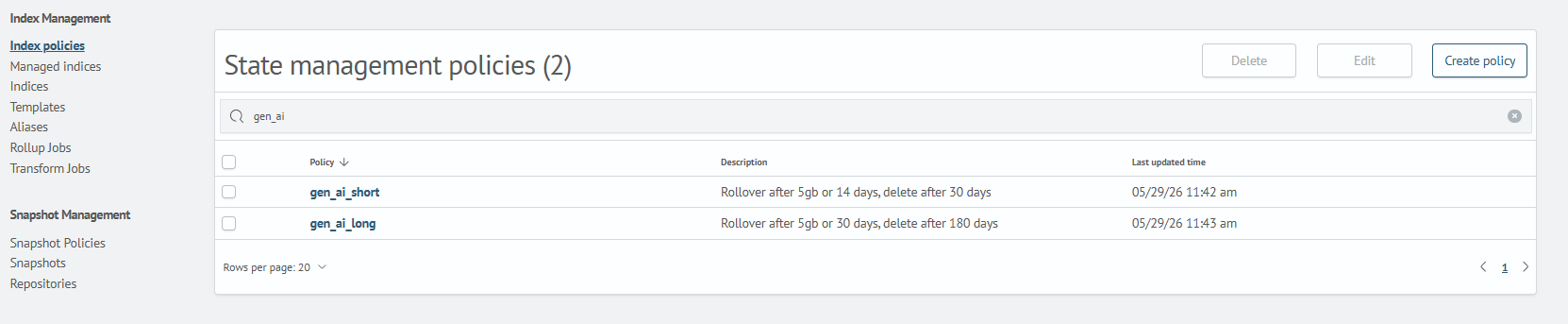
| ISM Policies | Lifecycle policies for short- and long-lived gen_ai_* indexes |
Settings in the indexes and policiesism directories must be adapted to the data storage and rotation requirements of a specific installation.
Ingest pipelines, index templates and patterns, gen_ai_*-000001 write indexes with aliases, lookups, the ai command preset, the Inventory asset, and health metrics are not included in the content module. The installation utility installs them and must be run before importing the content module.
Installation Sequence
Step 1. Module Installation
To install, perform the actions described in the corresponding Content Management section.
Example
- Go to
Main Menu-Settings-Module Settings-MAIN-Content Management - Select or drag the content module archive
ai_observability.zip - Confirm installation. After completion, objects will be available in the corresponding interface sections
Step 2. Checking Module Object Loading
Immediately after the first installation, the job and tag lists in Search Anywhere Framework may remain unavailable for up to 21 minutes while permissions are assigned to the new module objects. Check the jobs and tags once the lists are available.
1. Dashboard Check
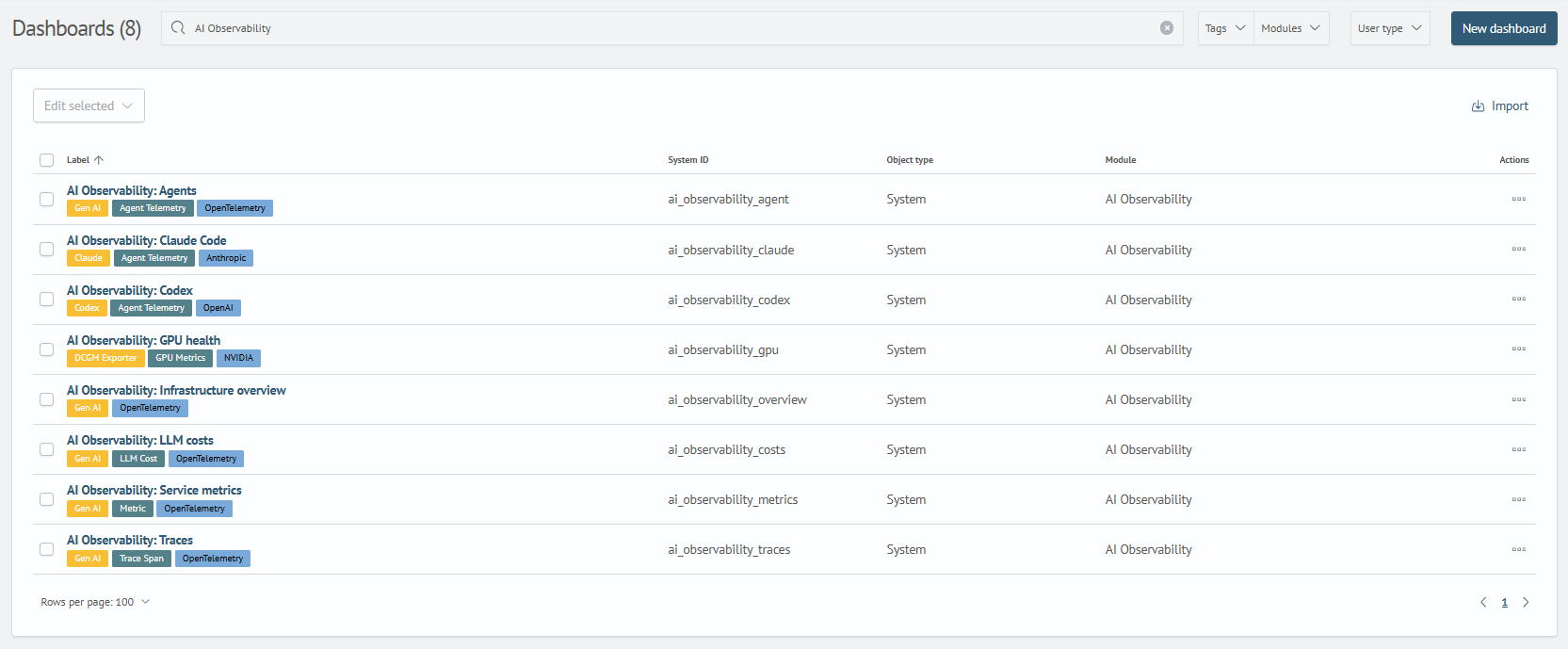
After importing the module, check that 12 dashboards are available:
Main Menu - Main - Dashboards
2. Scheduled Job Check
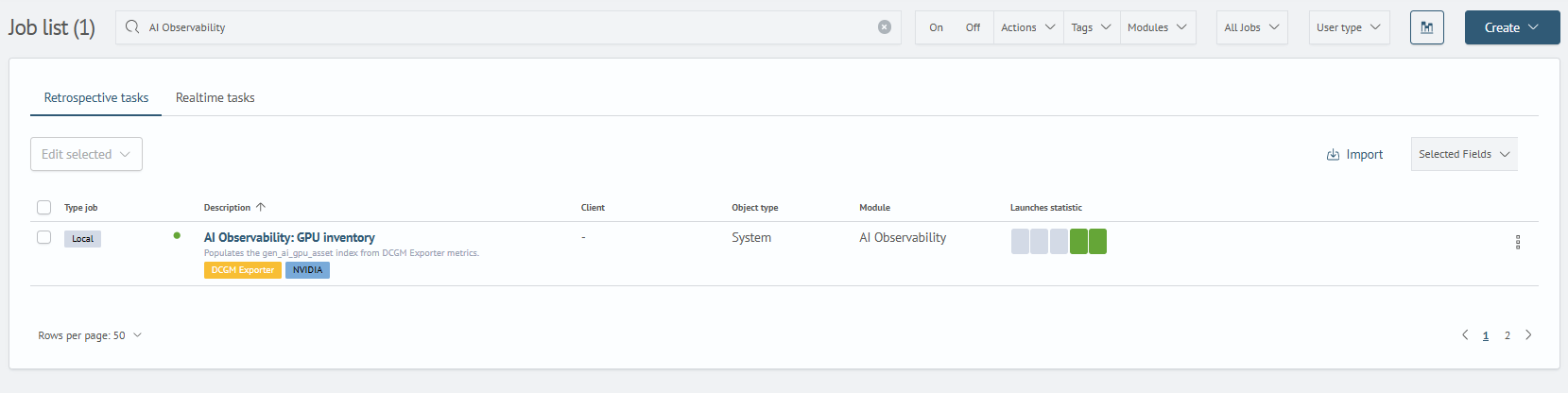
Check that the 18 module jobs are available, including AI Observability: GPU Inventory:
Main Menu - Job Scheduler
3. Index Check
Check for index availability:
Main Menu - System Settings - Index Management - Indexes
4. Index Management Policy Check
Check for ISM policies:
Main Menu - System Settings - Index Management - Index Policies
5. Tag Check
Check for tag availability:
Main Menu - Settings - Module Settings - Tags
- Agent Telemetry
- Anthropic
- Claude
- Codex
- DCGM Exporter
- GPU Metrics
- Gen AI
- LLM Cost
- Metric
- NVIDIA
- OpenAI
- OpenTelemetry
- Trace Span