Service Creation
To create a service, you need to go to the model card. Click the Create button to the right of the model name, select Service and click the Manual mode button. After that, the service creation form will open.
List of settings that make up the created service:
General info- contains basic information about the serviceConnections settings— allows setting up connections with metrics and other servicesInstallation of influence— allows setting the level of influence of selected metrics on the service
Basic Information Screen
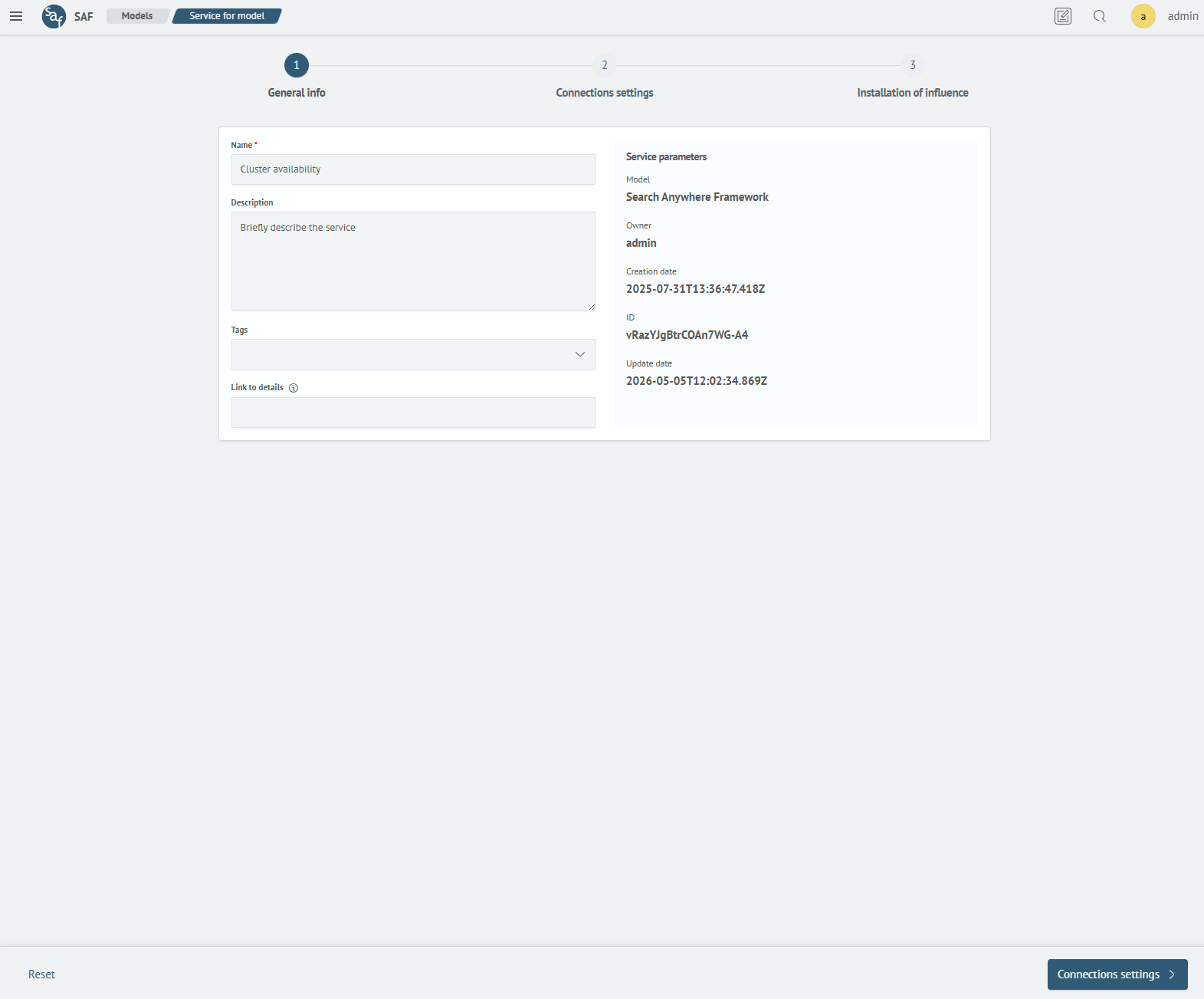
The screen contains information for identifying the service in the system: name, description, tags, and link to details.
For information in the Service parameters block, information about the model is displayed.
Connection Setup Screen
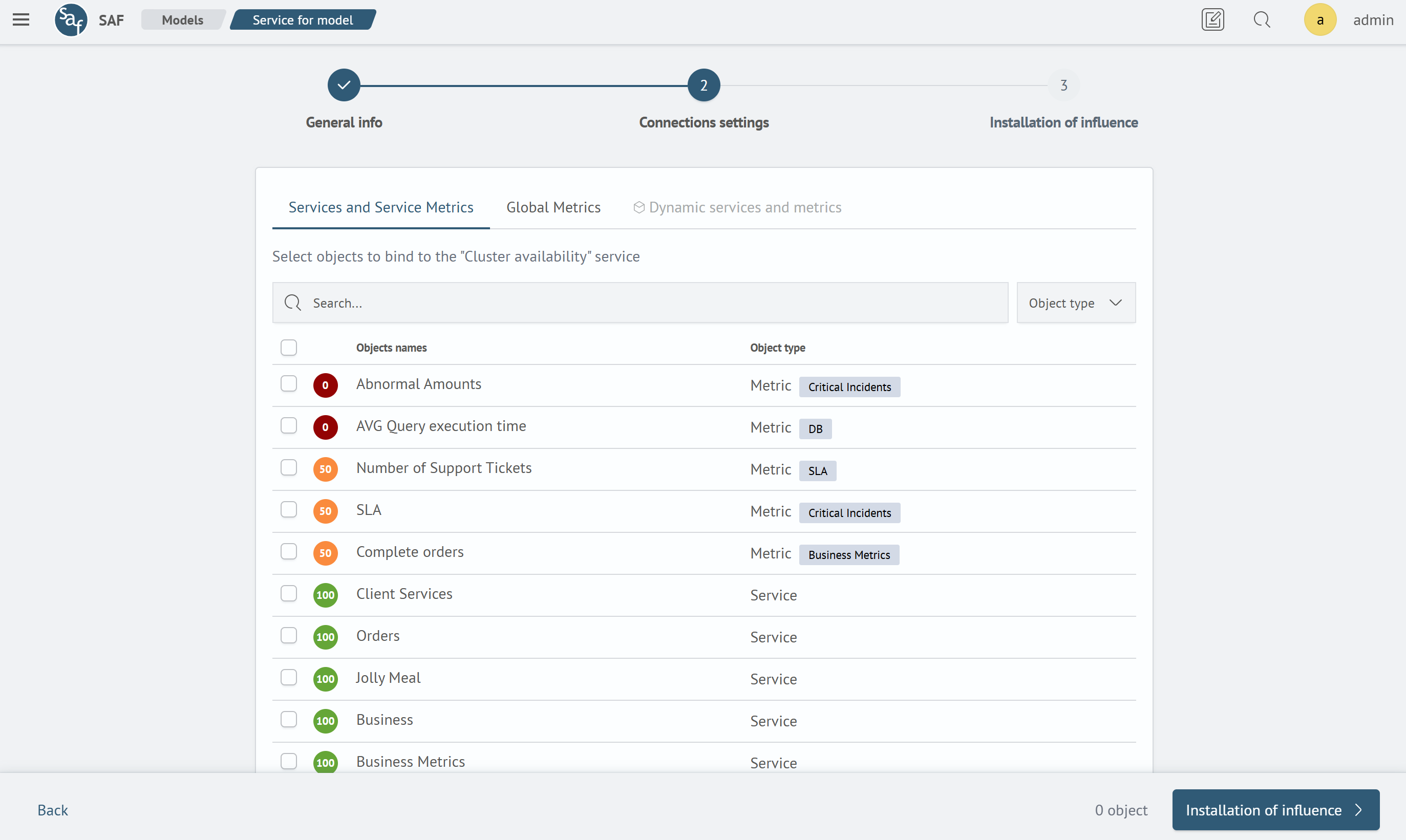
The screen allows you to select which metrics or services will identify the data service.
On the Services and Service Metrics tab, you can bind services and metrics related to this model.
The list can be filtered using the Search input field or using the object type filter: Metric or Service.
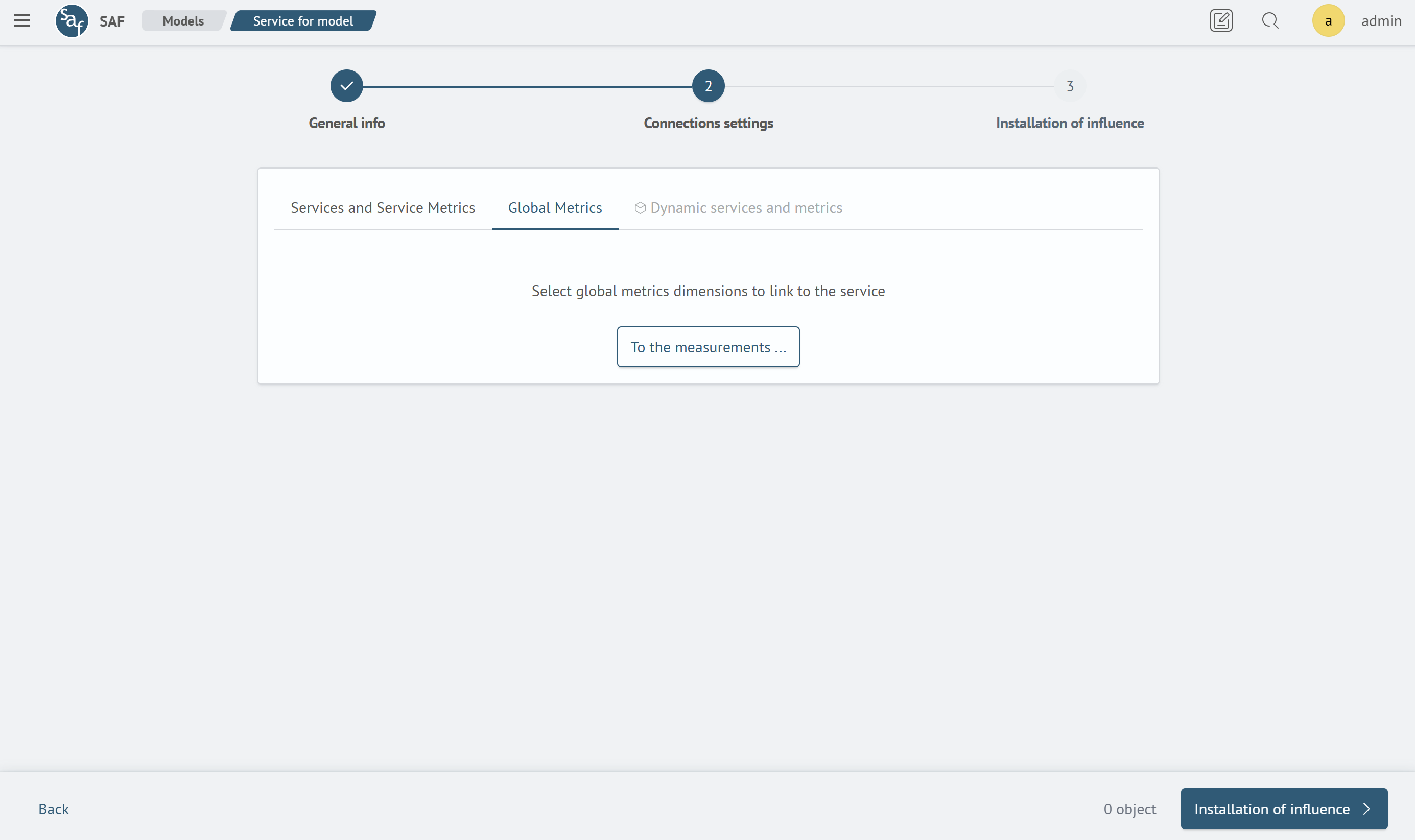
On the Global Metrics tab, you can bind measurements from global metrics to the service. To do this, click the To the measurements ... button if there were no settings before, or Select dimensions ....
The object selection screen will be displayed:
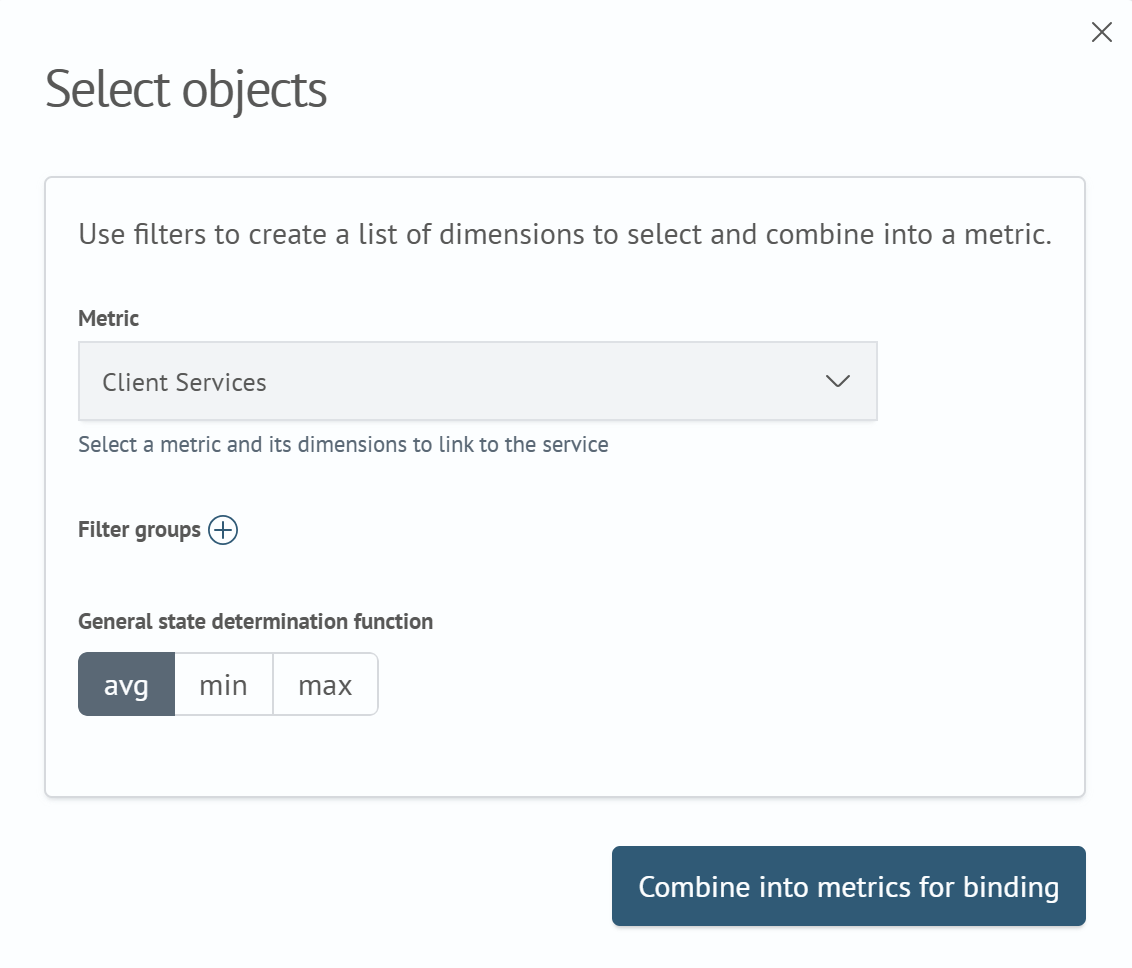
To set up binding of a global metric, it is enough to select it from the dropdown list. If necessary, you can configure filter groups and specify the required function for determining the overall state.
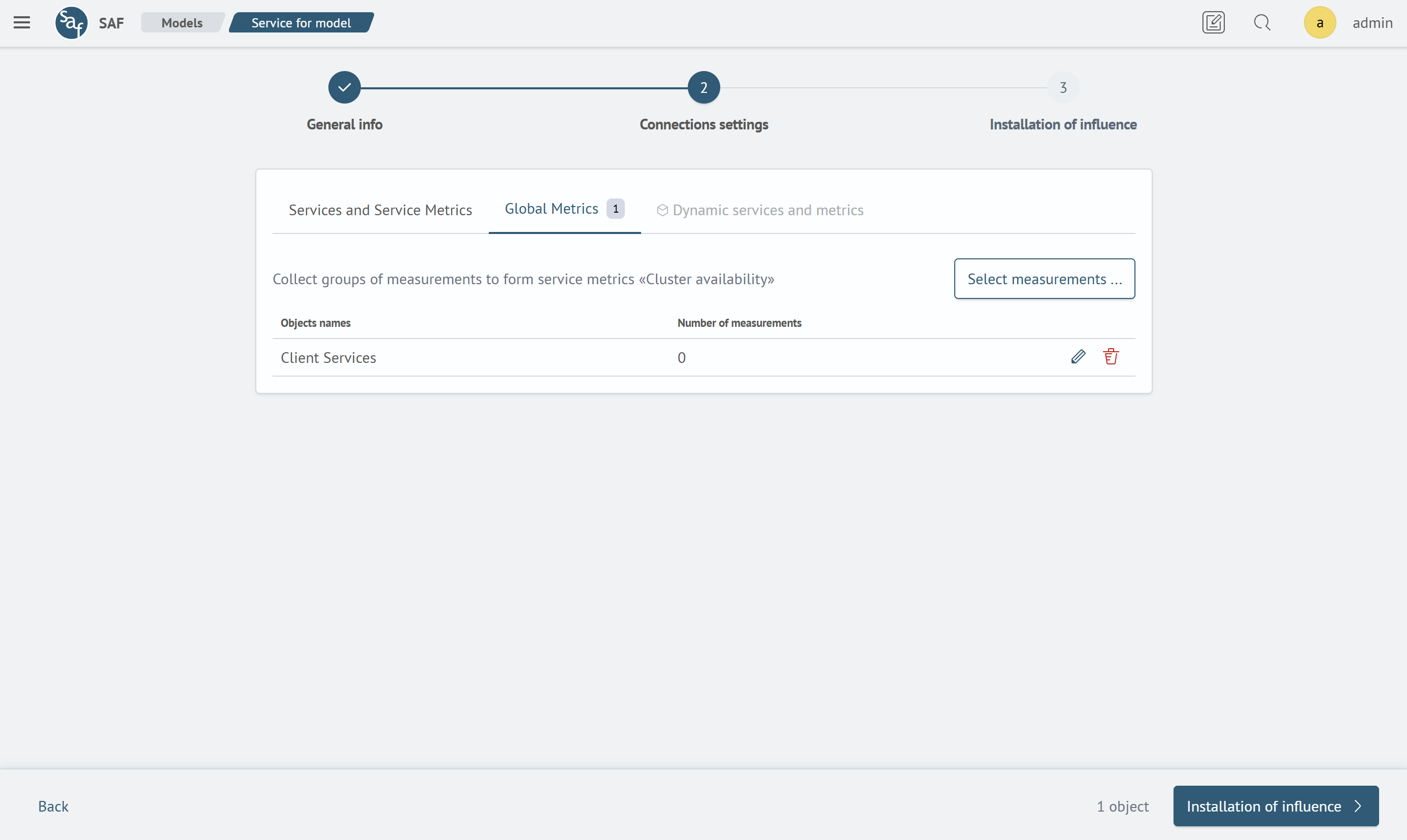
The Dynamic Services and Metrics tab is available with a LICENSE for the Service Monitor Toolkit module
Influence Setup Screen
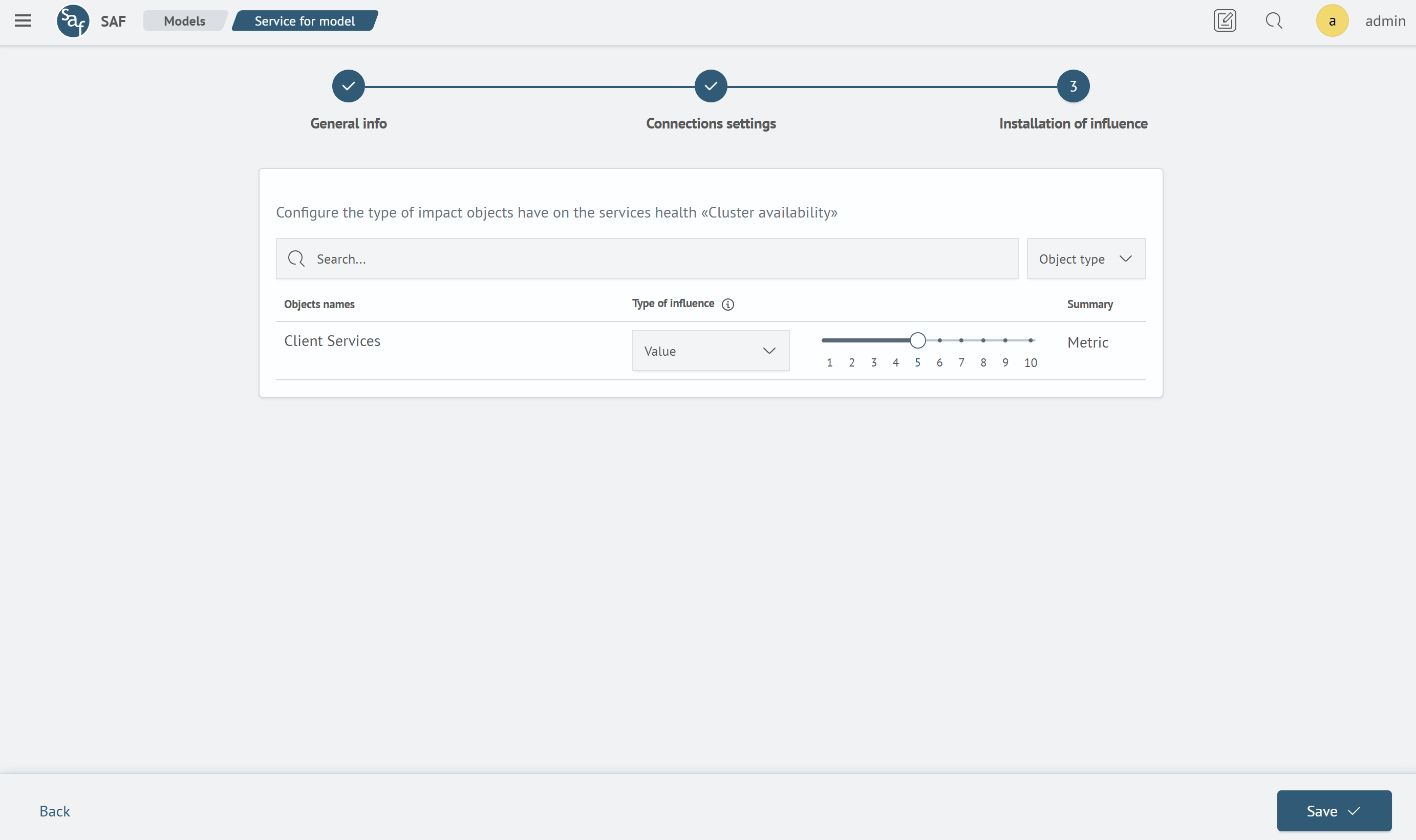
The screen allows you to set up the criteria for how a metric influences the service health.
The list can be filtered using the Search input field or using the object type filter: Metric or Service.
For each metric, you can set one of the following influence types:
Not Set- the object does not affect the service health calculationValue- determines how much the object's health affects the servicePriority- the minimum health value becomes determining
For influence types Value and Priority, you can set a value from 1 to 10 using the scale.
After that, you can save the service and complete its setup.