Creating and Editing Models
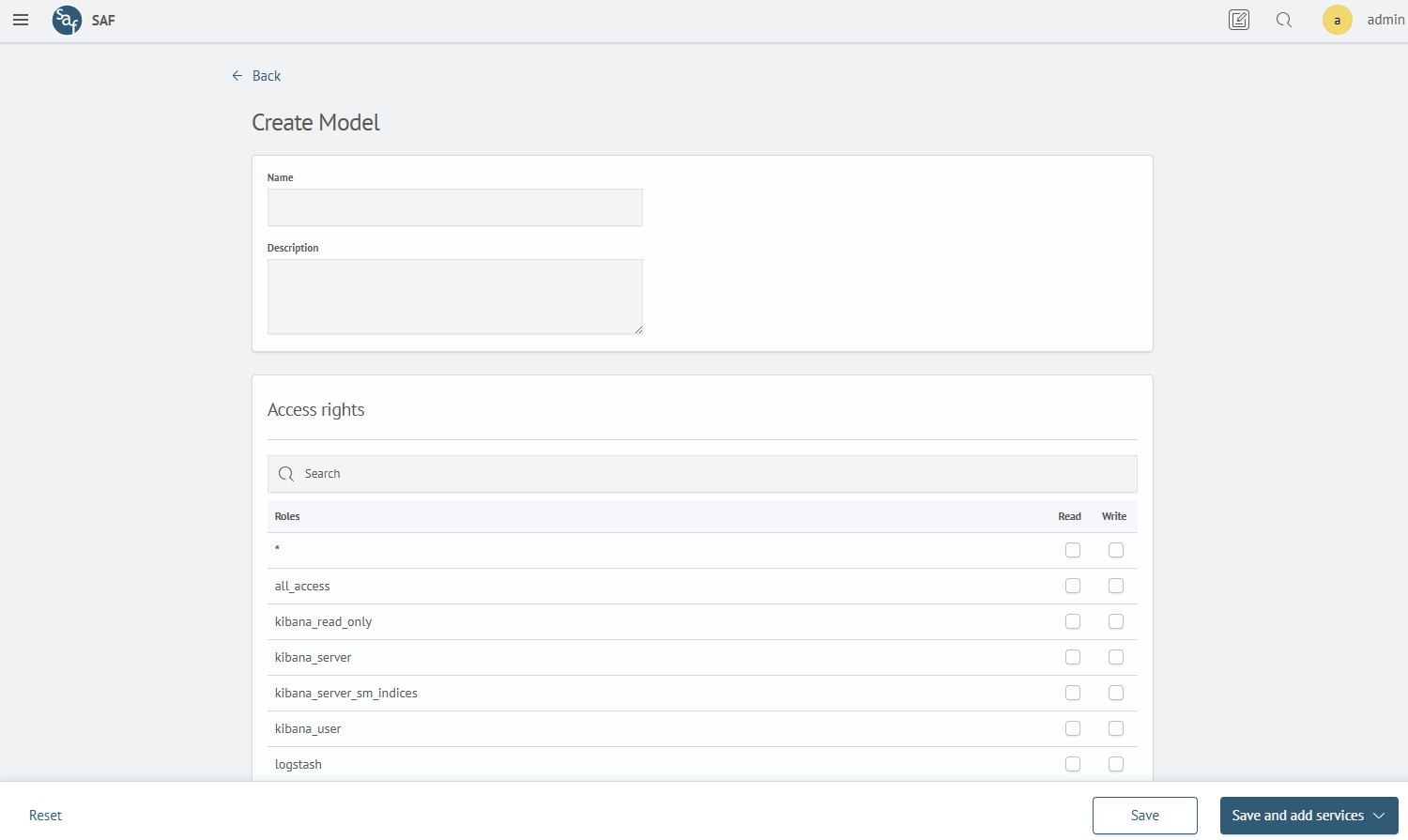
The page contains a form for creating and editing a model.
The page can work in model editing mode. The form is filled with existing model values.
Form Overview
The form contains the following fields:
- Name: displayed model name
- Description: brief model description
- Access rights: access rights configuration for roles in the system
"Access rights" Table
The Search field allows you to find a role in the table.
To select a permission, click the checkbox in the desired row in the desired column. When selecting the Write column, the value in the Read column is automatically set.
To select all roles, specify permission for the * role.
Form State Reset
Click the Reset button to reset the entered form values when creating a model or reset the changes made when editing.
Saving the Model
Click the Save button to create a model or save the changes made. After successful creation or saving, you will be redirected to the model list page.
Adding Services
In creation mode, the Add Service button is available. Click the button and select the service addition method to create a model and immediately add services to it.
- From Inventory: goes to the
Synchronization with Inventorypage for binding services - In manual mode: goes to the
Service Creationpage for creating a service and binding it to the model