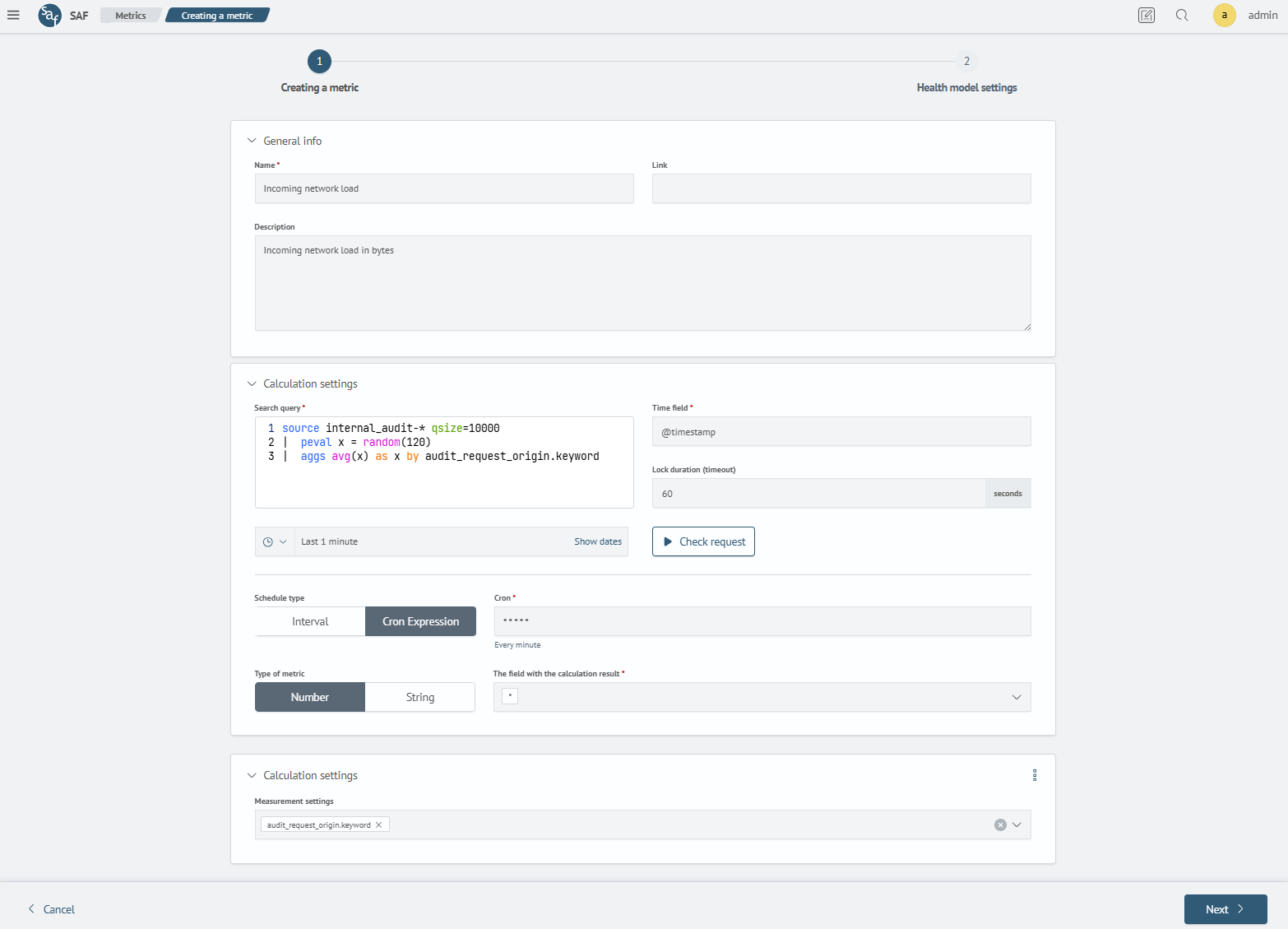
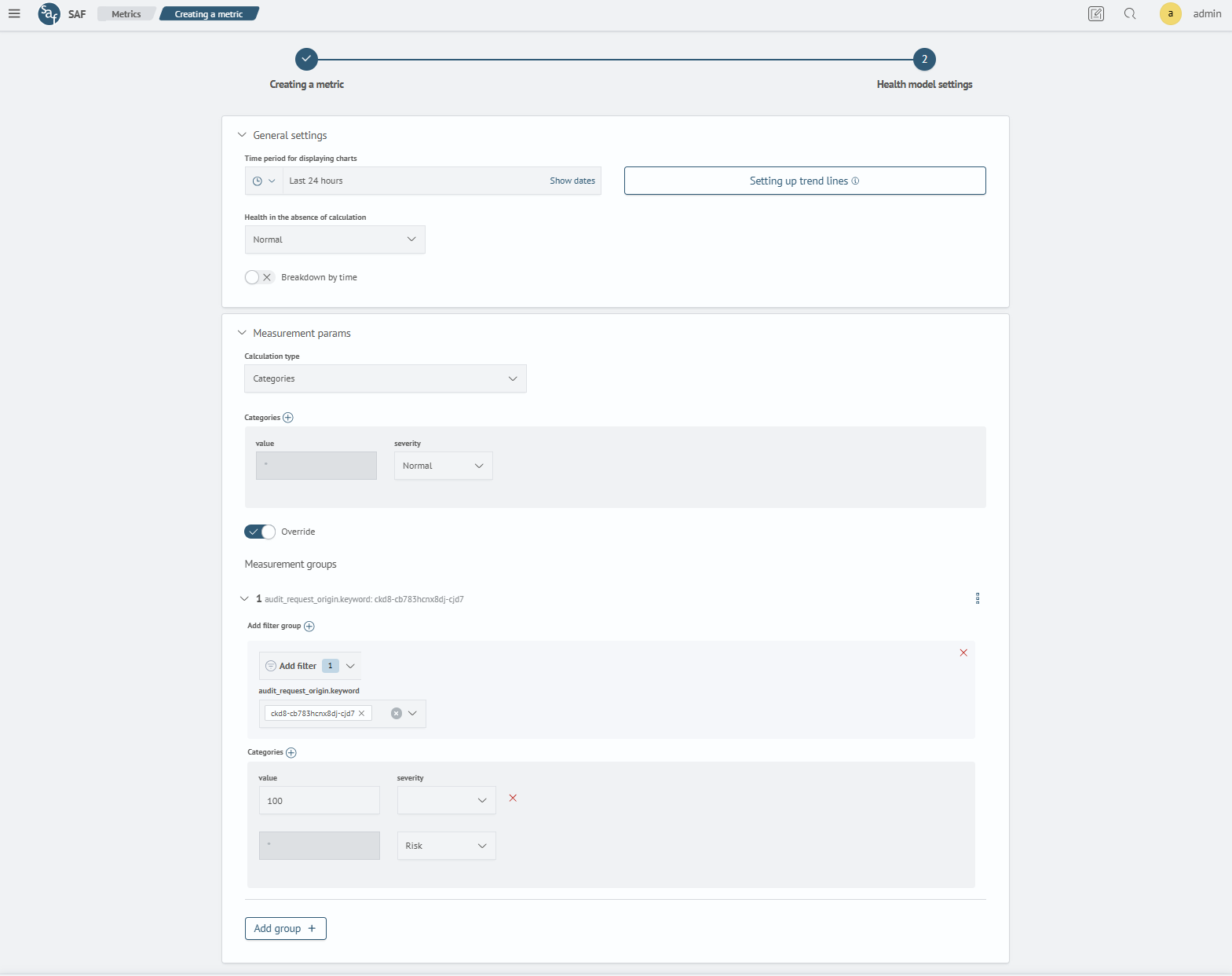
Metric Configuration
To create a new or edit an existing metric, you need to click the Create metric button or in the Actions section click the Edit item. After that, the metric creation (or editing) form will open.
List of settings that make up the created metric:
Metric Creation- contains basic information about the metricHealth Model Setup— allows setting up health models and metric calculation parameters
Metric Creation Screen
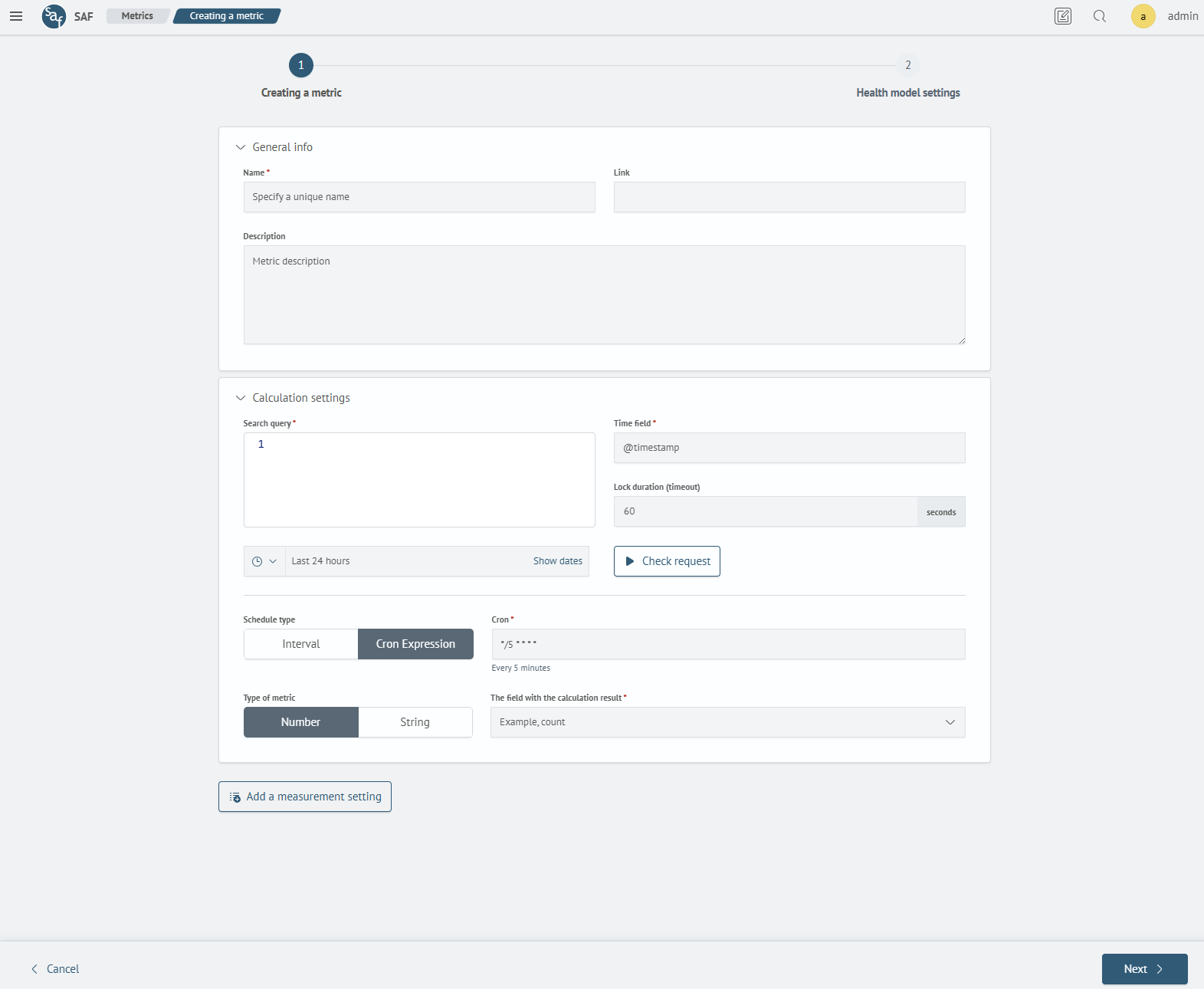
The metric creation tab consists of the following sections:
General Information- contains information for identifying the metric in the systemCalculation Setup- defines where data for metrics will be collected from, by which fields and with what frequency
The General information section contains the following fields:
| Field | Description |
|---|---|
Name | Unique metric name (required) |
Link | Link to an external resource that can be opened from the metric row in the relationships table |
Description | Brief explanation of the metric's purpose |
The Calculation settings section contains the following fields:
| Field | Description |
|---|---|
Search query | Query used to collect metric data (required) |
Time field | Timestamp field used for the calculation (required) |
Lock duration (timeout) | Time in seconds during which the calculation cannot be started again |
Schedule type | Method used to define the calculation frequency: Interval or Cron expression |
Metric type | Metric value type: Number or String |
Calculation result field | Field from the query result whose value is used as the metric value (required) |
For the Interval schedule type, specify the Start time, interval, and Unit of measurement: seconds, minutes, hours, or days. For the Cron expression type, specify the schedule in Cron format.
Use the Validate query button to run the search query in test mode and check it for errors. If no errors are found, the system returns a list of result fields for further configuration. Select the Calculation result field value from this list.
If necessary, you can Add Dimension Setting to detail the metric by individual objects.
The Next button at the bottom of the page takes you to the Health model configuration step. The Cancel button closes the form without saving.
Health Model Setup Screen
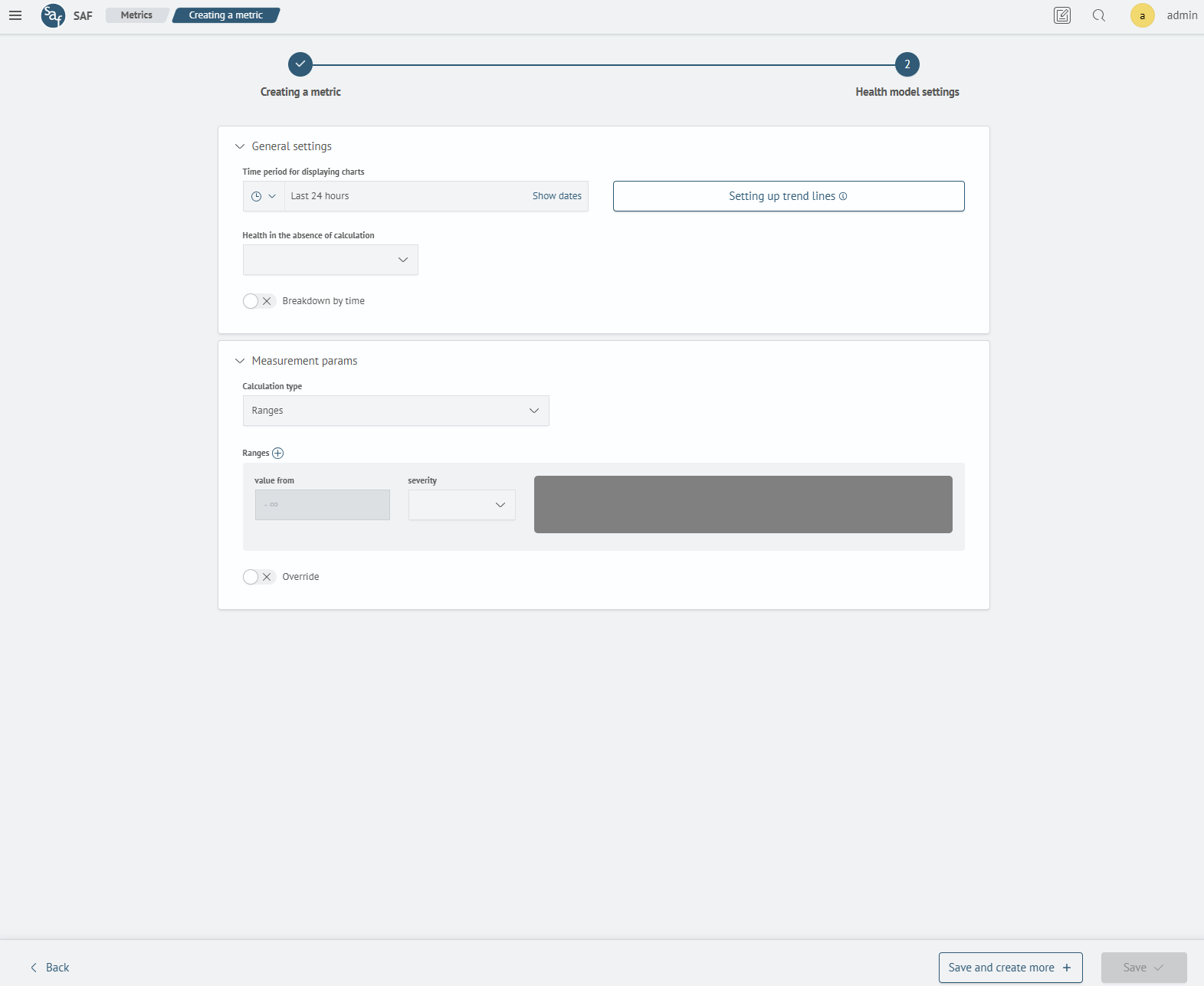
The health model setup tab consists of the following sections:
General Settings:Health when no calculation- health value that is set by default if there is no metric calculation
Calculation Parameters set health by one of the following calculation types:
Ranges- numerical assessment - state valueCategory- categorical assessment - state
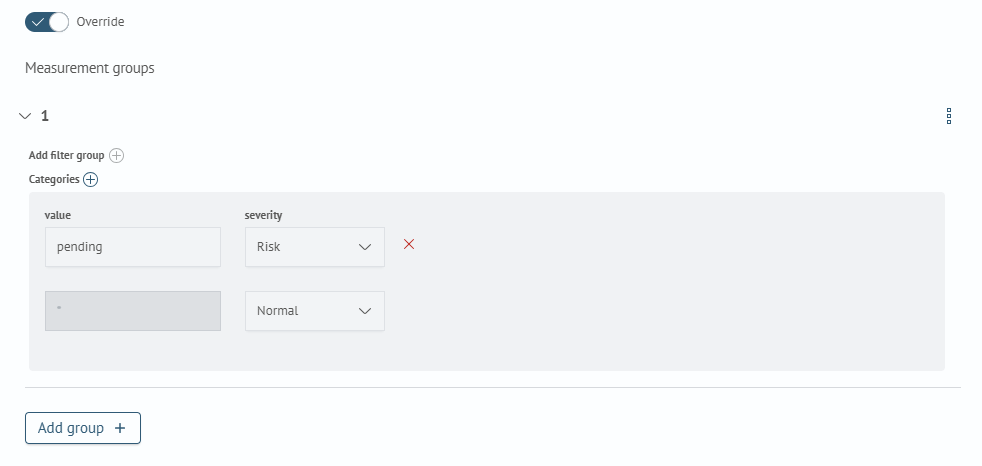
Using the Override option, you can additionally configure calculation parameters, including filter groups for binding to specific dimensions:
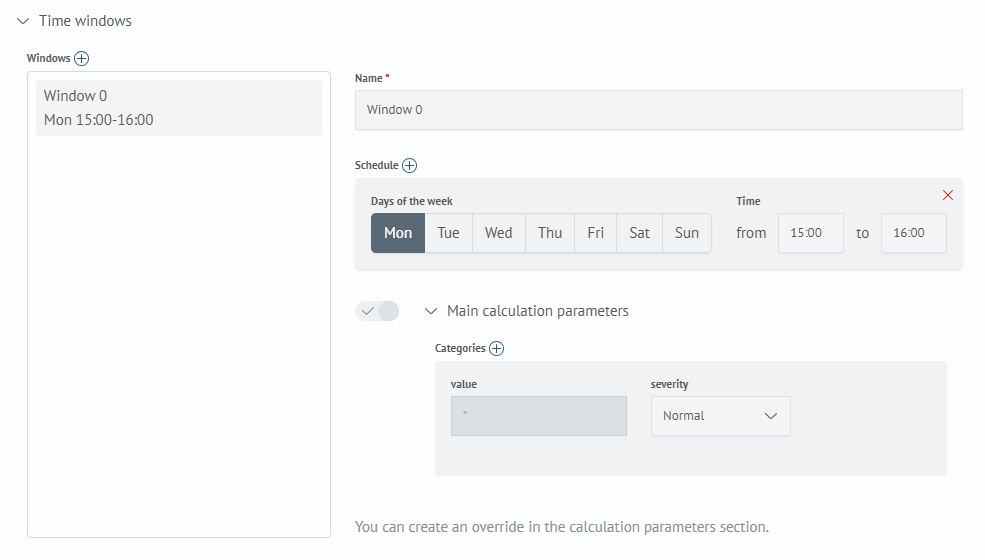
When enabling the Time Breakdown option in general settings, it becomes possible to configure time windows for calculating metric criticality by days and time periods:
After completing the settings in the second step, click Save to save the metric and finish, or Save and create another to proceed to creating another metric. The Back button returns you to the Create metric step.
When creating a metric, it is saved as soon as you proceed from the first step to the second. A notification indicates that you can continue configuring the health model. In edit mode, proceeding from the first step does not save any changes; the metric is saved in the second step.
Metric Editing Examples