Wikilogs
Overview
Wikilogs is a Knowledge Center reference section (hereinafter, KWC) for creating and maintaining a knowledge base. It stores instructions, procedures, and other materials as articles organized into a hierarchical tree.
Wikilogs allows you to:
- create articles and organize them into sections
- use existing articles as templates
- add text, tables, lists, images, and other blocks to articles
- configure access permissions
- clone, edit, and delete articles
To open the section, navigate to Main Menu - Knowledge Center - Wikilogs. The article tree appears on the left side of the page, and the selected article content appears in the main area.

Configure the Article Tree
The article tree defines the knowledge base structure and appears on the left side of the page. You can place an article at the root of the tree or inside another article.
To set the position of a new article, expand the location field in the Create Page window and select a parent article. The new article appears at the next nesting level. To create a separate section, select Root.
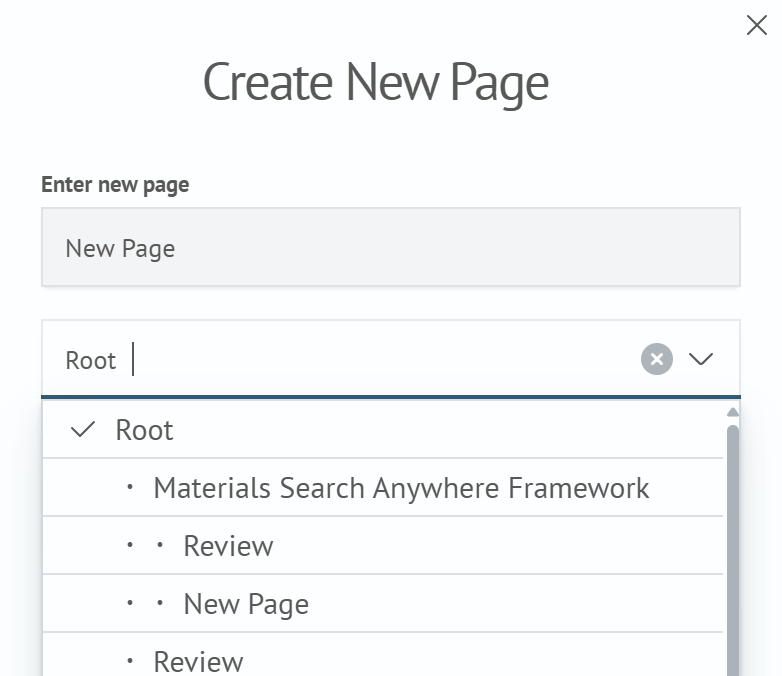
You can collapse and expand articles with child elements by using the arrow to the left of the article name.
Create an Article
To create an article:
- Click
Create Pagein the upper-right corner - In the
Create Pagewindow, enter the article name - Select the article location in the tree
- Select a template if necessary
- Click
Create
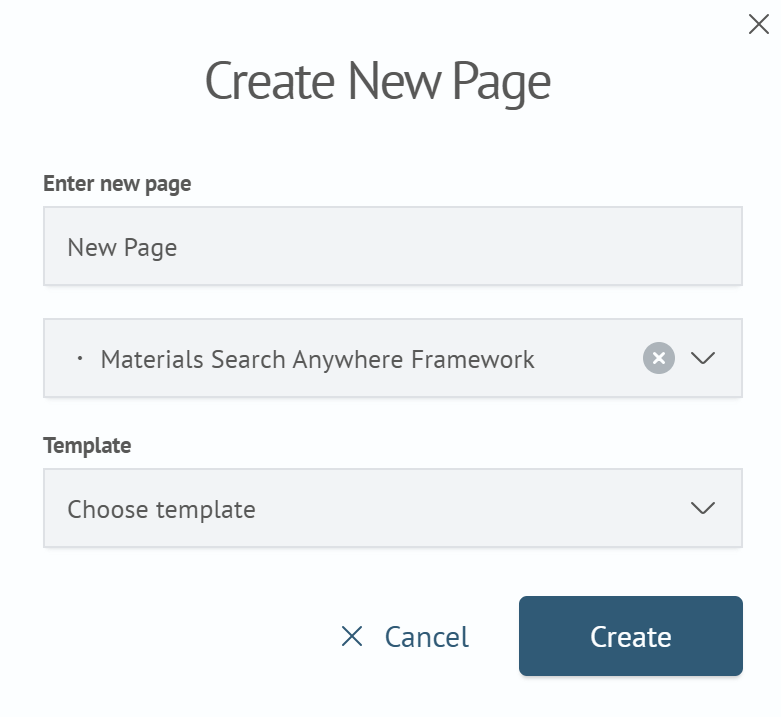
After creation, the new article opens. To add content, click Edit.

Configure Templates
You can use any prepared article as a template for new pages. First, create and format an article with the required structure, then:
- Open the article
- Click
Settings - In the
Templatesection, enableUse as Template - Click
Save and Close
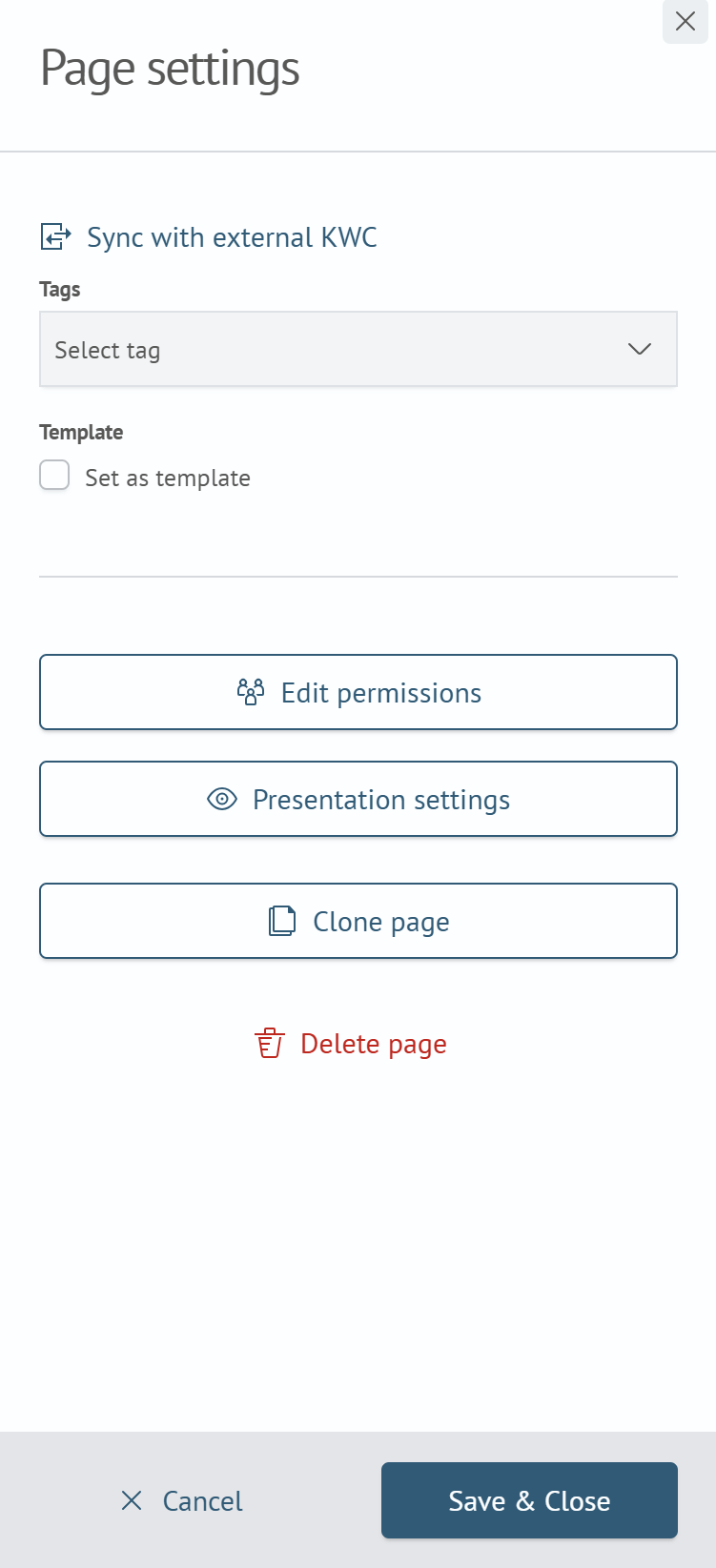
After you save the article, it becomes available in the template list when you create new pages.
Use Templates
To create an article from a template:
- Click
Create Page - Specify the name and location of the new article
- In the
Select Templatefield, select the required article template - Click
Create
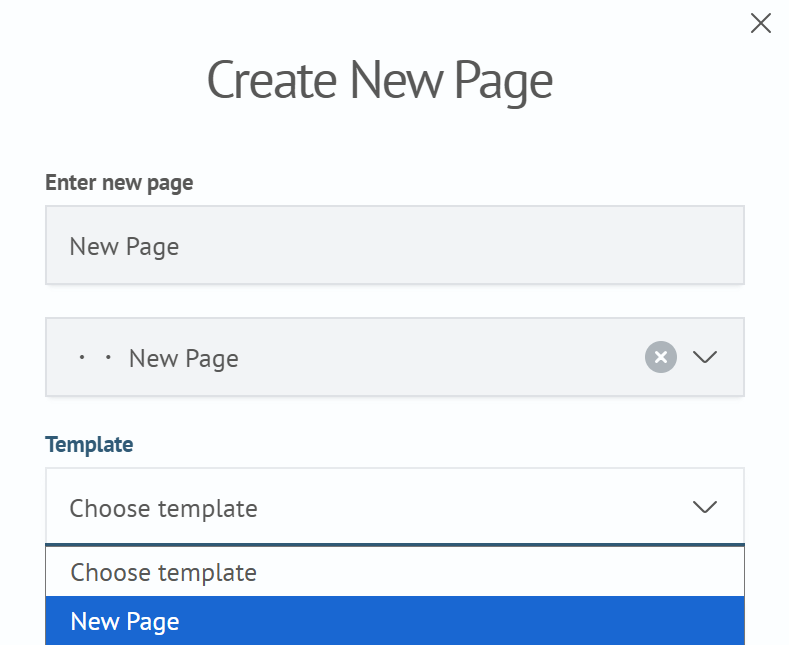
The created article receives the selected template content. You can then edit it as a regular article.
Text Parser Features
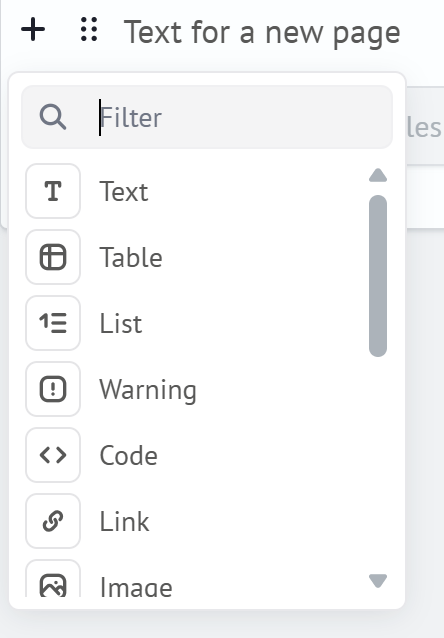
The Wikilogs text parser builds article content from individual blocks. To add a block, click the + icon to the left of the editing area and select a block type. Available block types include text, table, list, note, code, link, image, and others.
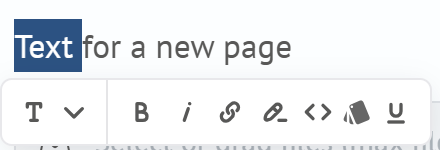
When you select text, the formatting toolbar appears. You can use it to change text style, apply bold, italic, or underline formatting, add a link, format a fragment as code, or highlight it.
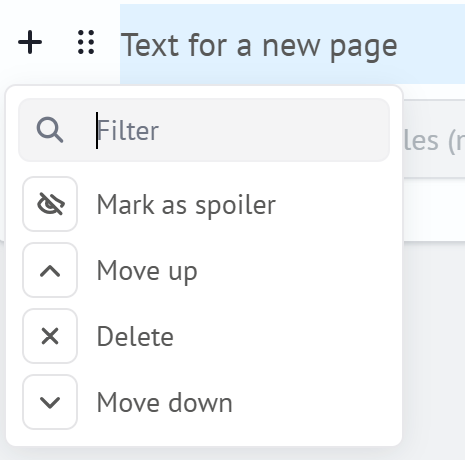
The block menu lets you hide a block, move it up or down, or delete it.
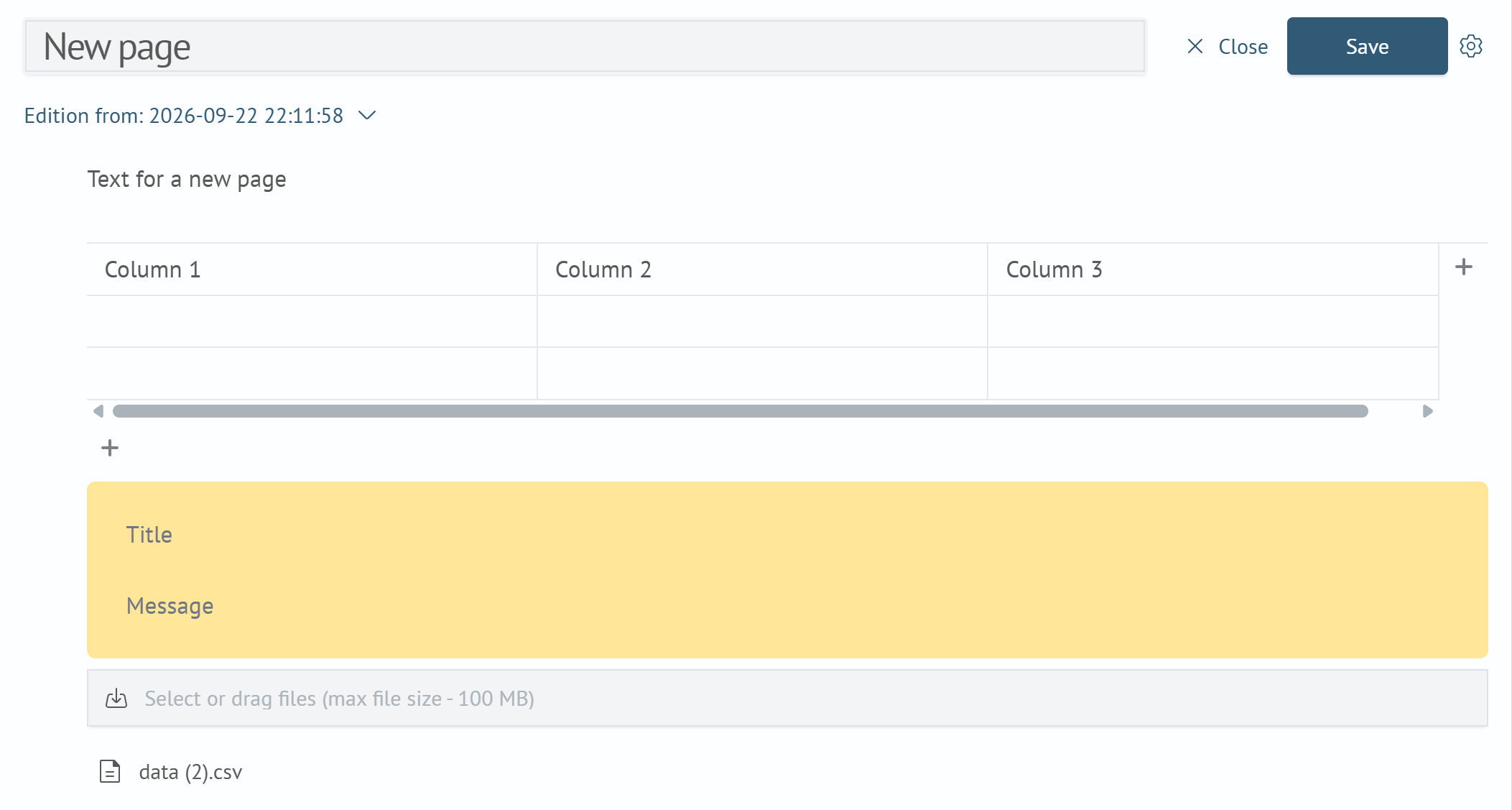
You can combine different content types and attach files in one article. The upload area displays the maximum size of a single file.
Edit an Article
To edit an existing article:
- Select the article in the tree
- Click
Edit - Change the article title or content
- Click
Save
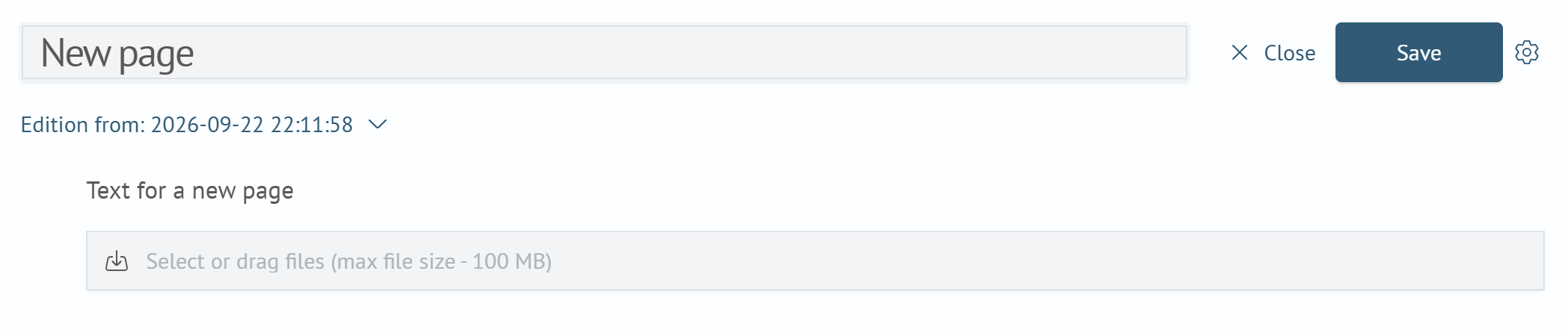
To save changes automatically, click the settings icon next to Save and enable Autosave.
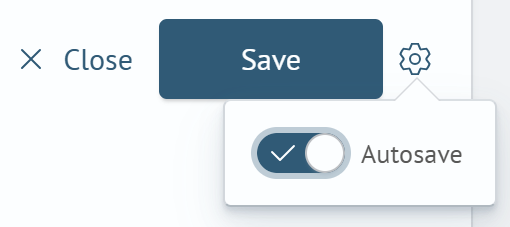
To exit edit mode, click Close.
Delete an Article
To delete an article:
- Open the article
- Click
Settings - Click
Delete Page
Deleting a parent article also deletes all child articles in its branch. Before deleting, make sure that the parent article, its child articles, and the materials in them are no longer needed.