Search
General Information
The Search section in Knowledge Center (hereinafter referred to as KWC) provides a unified tool for quickly finding the necessary information in the knowledge base. It allows searching through content stored in KWC, significantly simplifying navigation and saving time when working with the system.
Search Scope
Search in KWC is performed across three main types of content:
| Content Type | What's Included | Search Fields |
|---|---|---|
| Articles | Technical documentation Component setup instructions Data source descriptions Procedures and regulations Any other informational materials presented as articles | Article title Tags assigned to the article |
| Rules | Data processing rules Event routing rules Business rules Security and access rules | Rule name Rule description Tags assigned to the rule |
| Scenarios | Automation scenarios Incident processing scenarios Monitoring scenarios Event response scenarios | Scenario name Scenario description Tags assigned to the scenario |
How to Use Search
Search Main Page
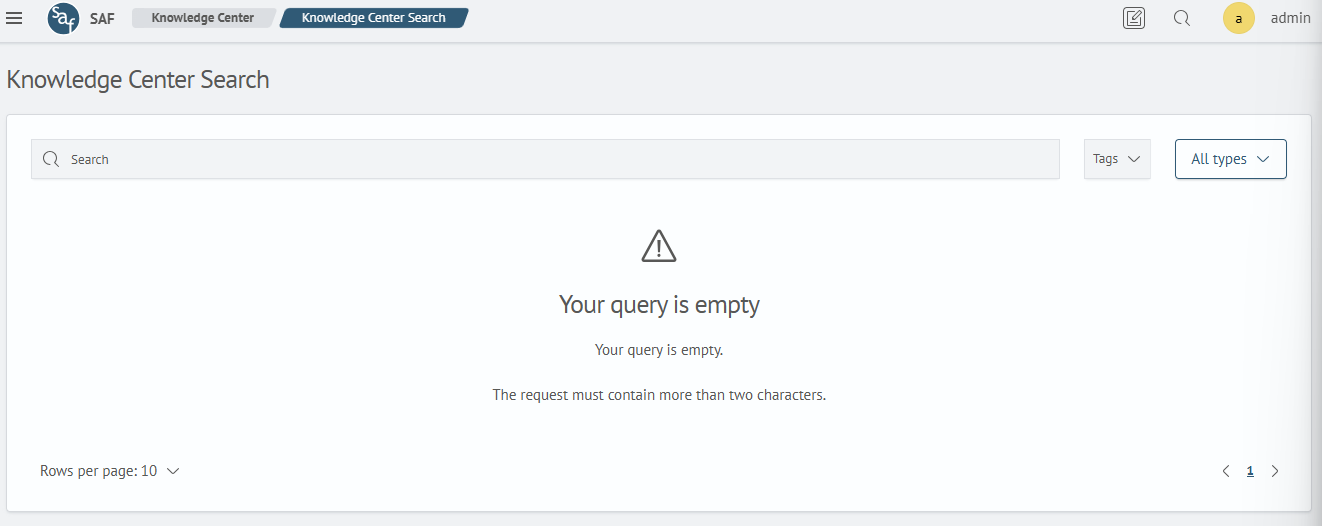
Navigate to Main Menu - Knowledge Center - Search, after which the search window will open:
Searching
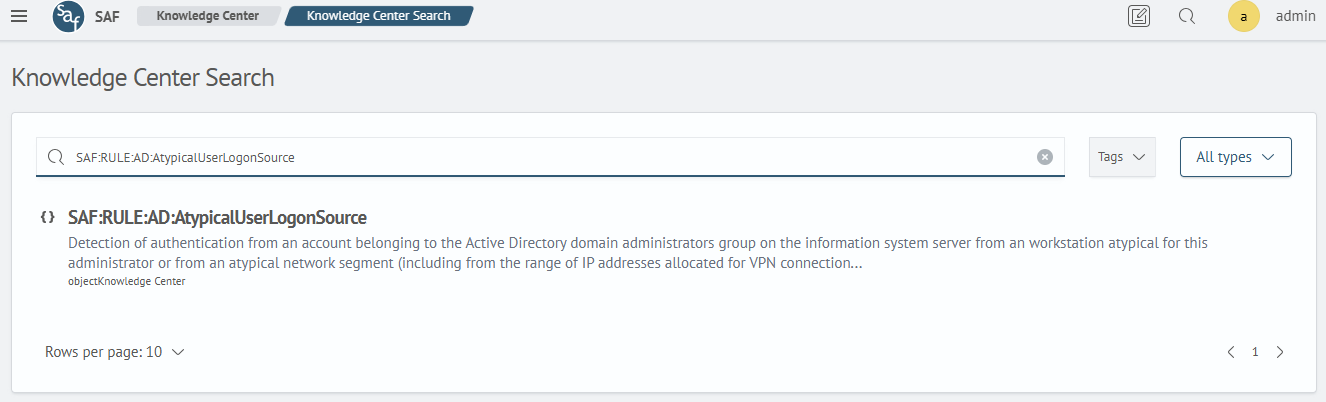
To use the search, specify the full name of the content, for example, a rule:
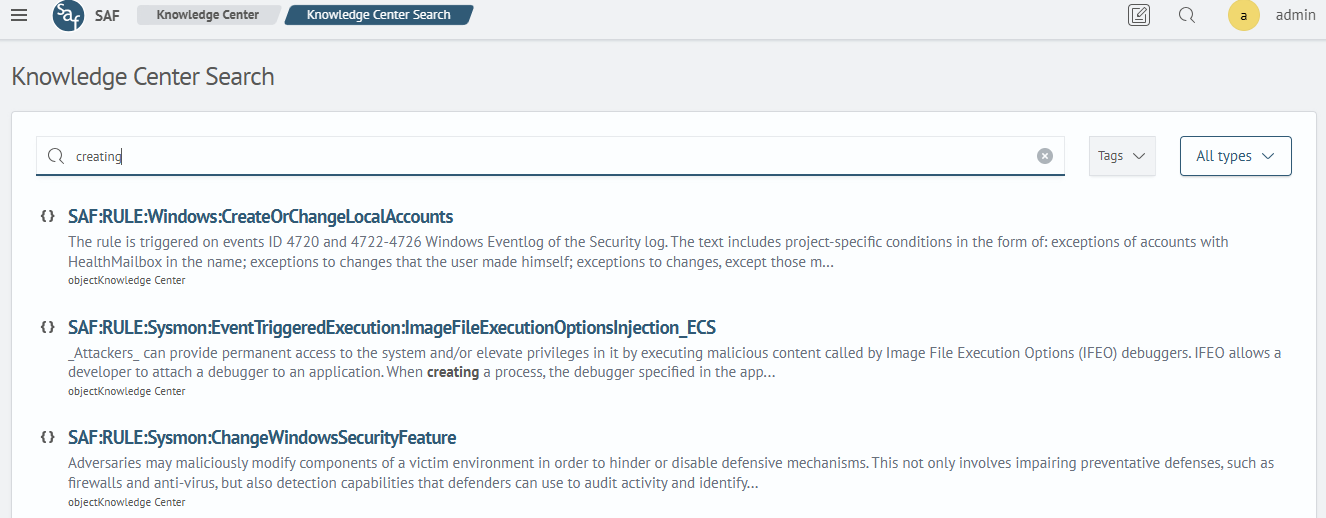
You can also use the content description or part of it for searching:
Tag Filtering
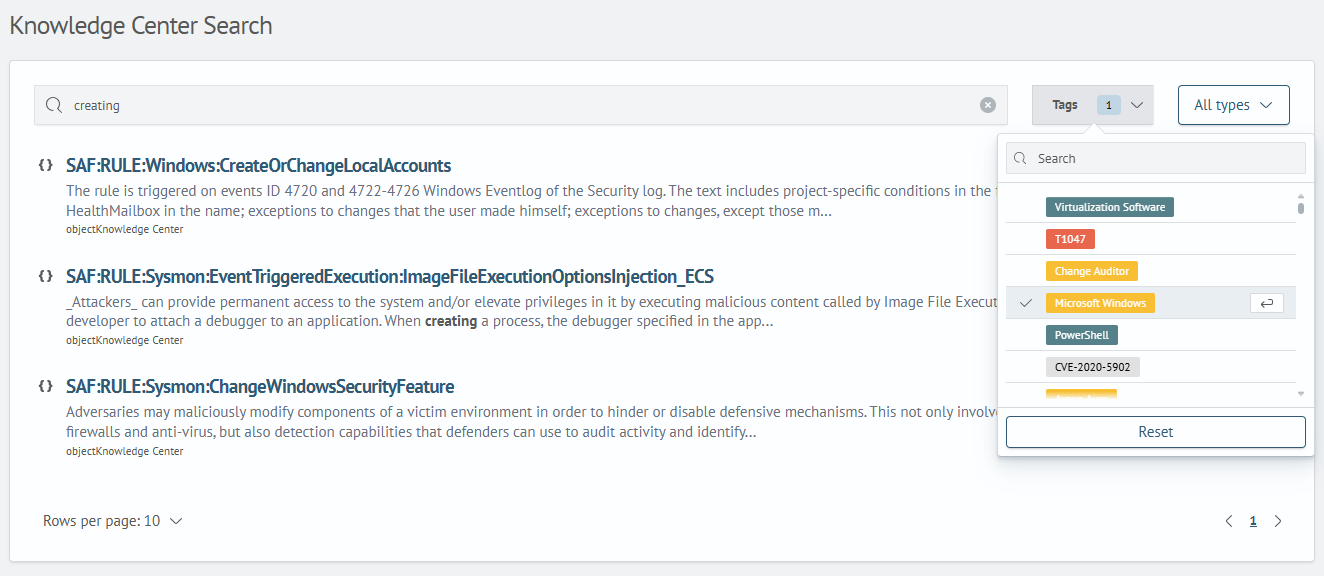
To use filters, click the Tags dropdown list on the right side of the window and select the desired filters:
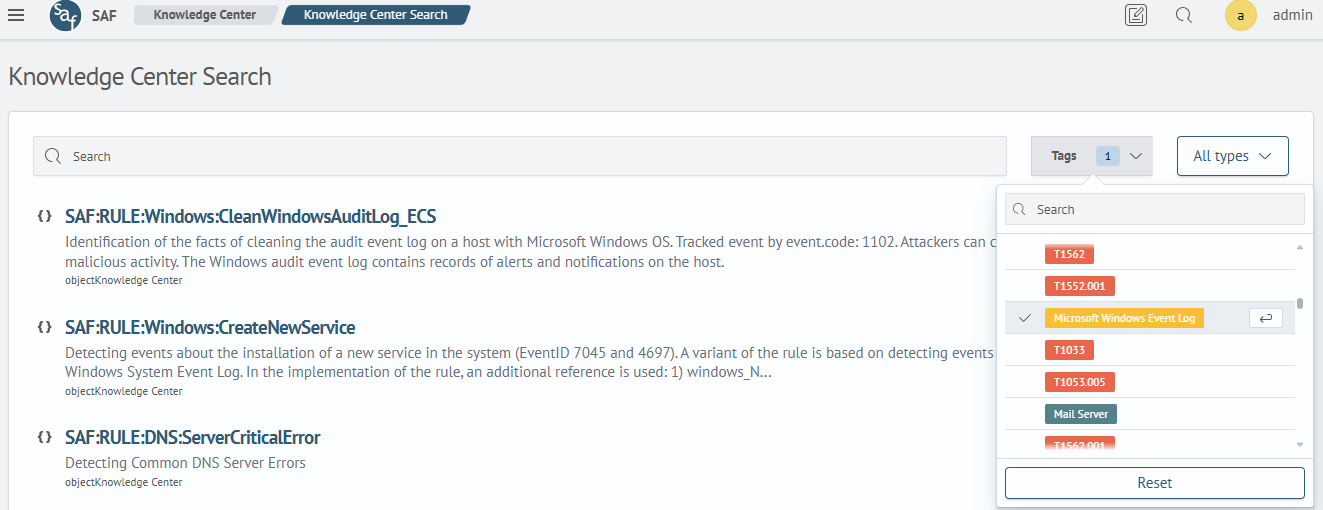
Next to the Tags dropdown list, there is a list for filtering by content type. By default, the All Types option is selected:
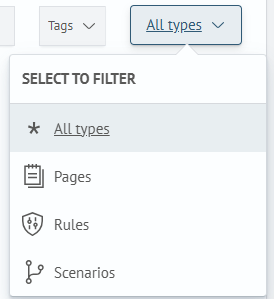
Content Type Filtering
Content type filtering works only in combination with:
- search
- tag filtering
- both search and tag filtering
Example query without using content type filtering:
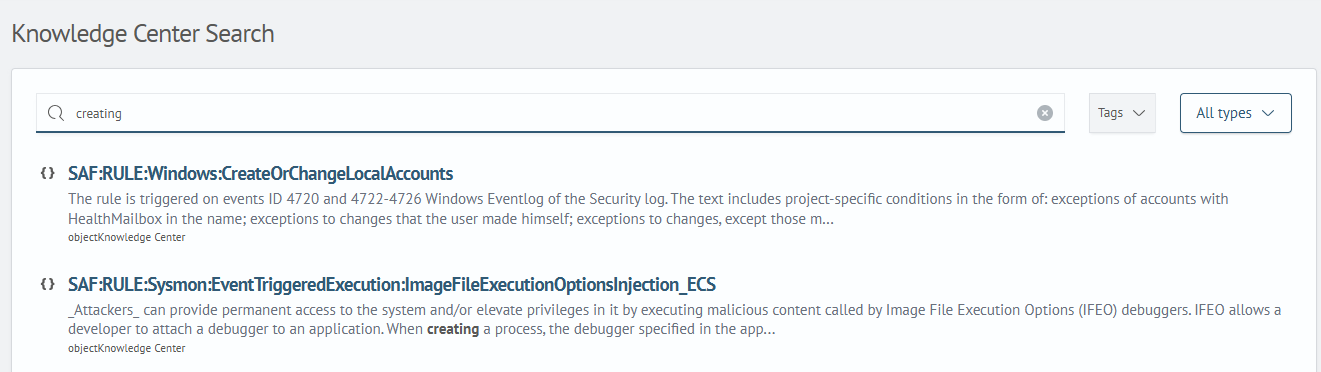
Example using the Rules option for content type filtering:
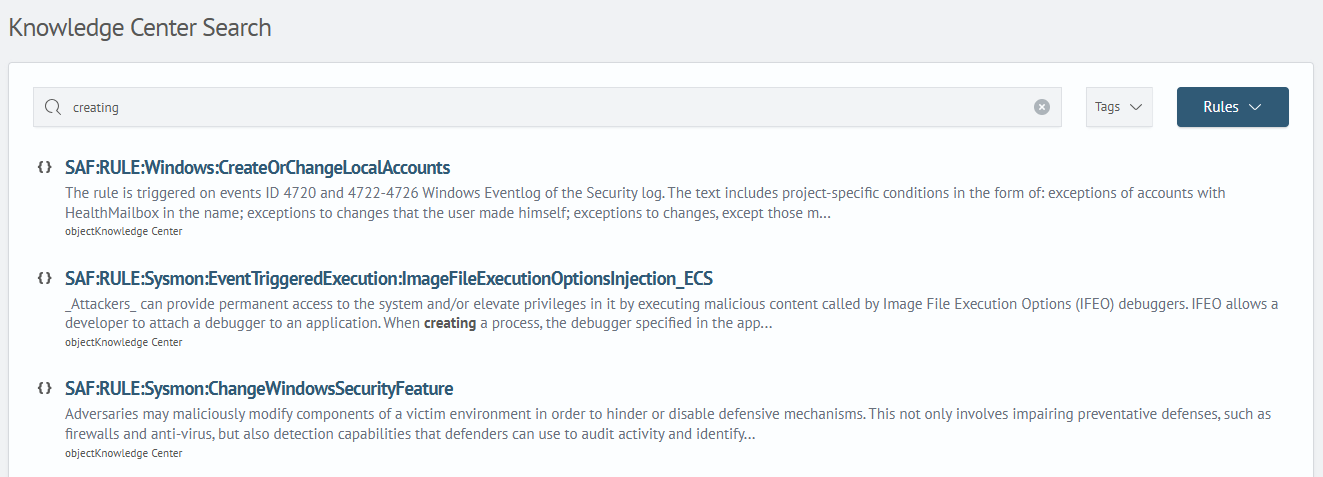
Combining Search and Filtering
In addition to content type filtering and search, you can also combine them with tag filtering: