Rules
General Information
The Rules section in Knowledge Center (hereinafter referred to as KWC) is a single information and reference database where you can collect and store descriptions of data and event processing rules in the system.
The Rules section solves the following tasks:
-
Centralized information storage. All rules are collected in one place and available through the web interface. This eliminates the need to search for fragmented information, for example, in the
Job Schedulermodule, where the task contains only a partial description of the rule -
Standardization of processing logic description. Each rule has a structured description including three main sections and subsections
-
Documentation during the work process. Maintaining records of rules in the KWC interface allows keeping documentation up-to-date without the need to maintain separate files or wiki pages
Rule Structure
A rule consists of the following sections:
- rule description
- rule name (required parameter)
- brief description (required parameter)
- full description (required parameter)
- search query
- query name (required parameter)
- query description
- severity
- search query type
- search query (required parameter)
- time interval
- execution schedule (required parameter)
- additional parameters
- tags
- Wikilogs articles
- additional materials
Creation
When navigating to the module Main Menu - Knowledge Center - Rules, a list of rules available in the system is displayed. To create a new rule, click the Create button.

Here you can also filter rules by tags and severity or find the required source using the search.
Setting up Rule Description
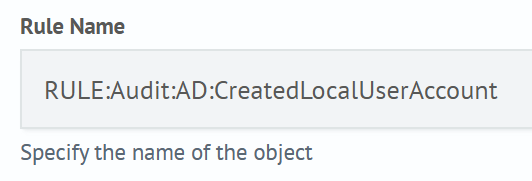
Rule Name
You need to specify the rule name.
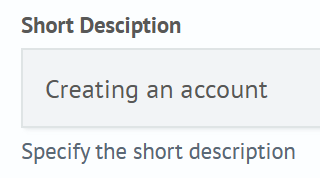
Brief Description
You need to specify a brief description of the rule.
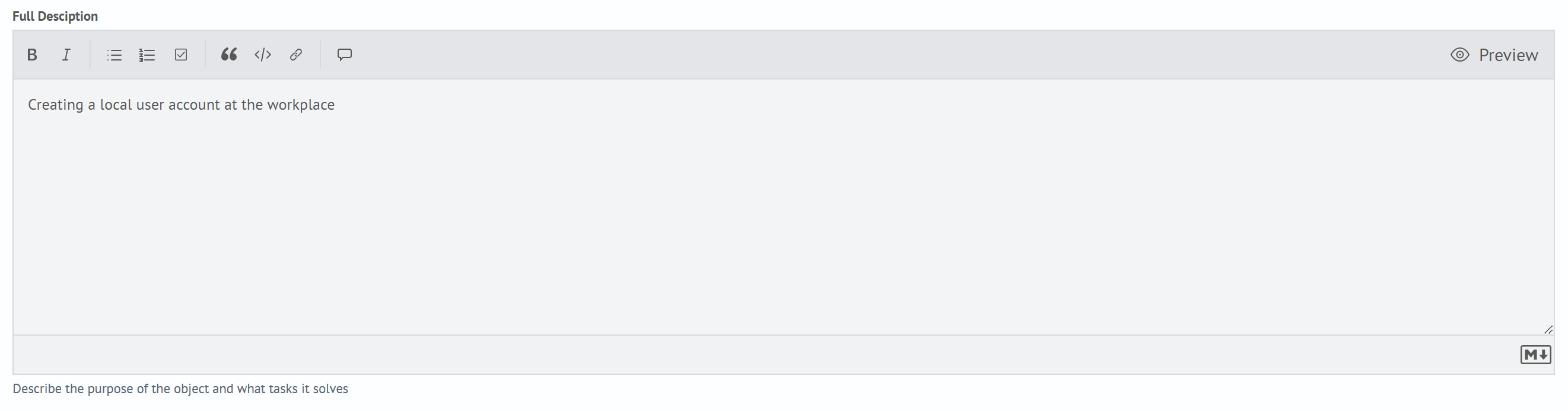
Full Description
You need to specify a full description of the rule. The description is set in md format.
Setting up Search Query
Query Name
You need to specify the query name.

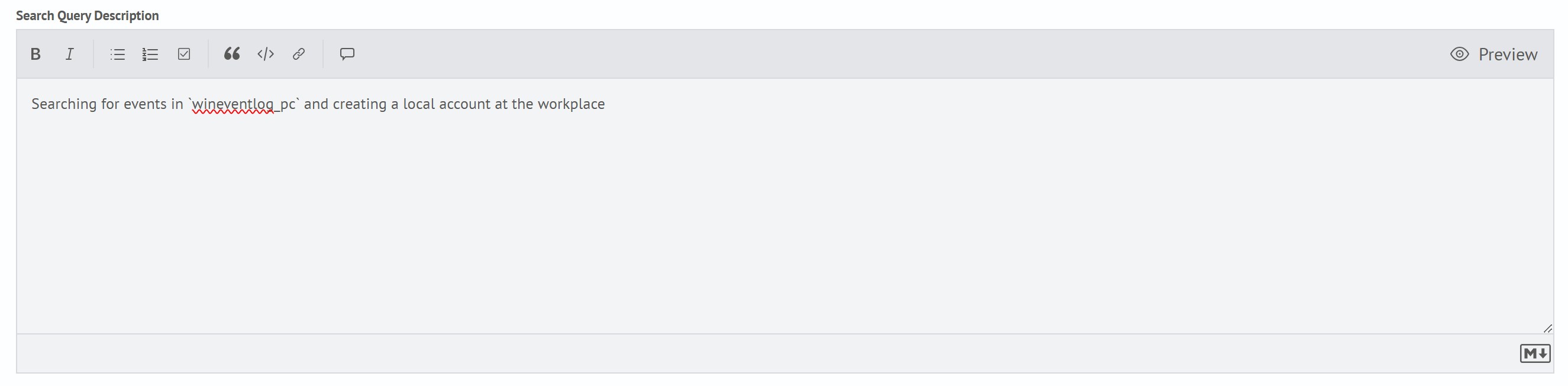
Query Description
If necessary, you can add a query description. The description is set in md format.
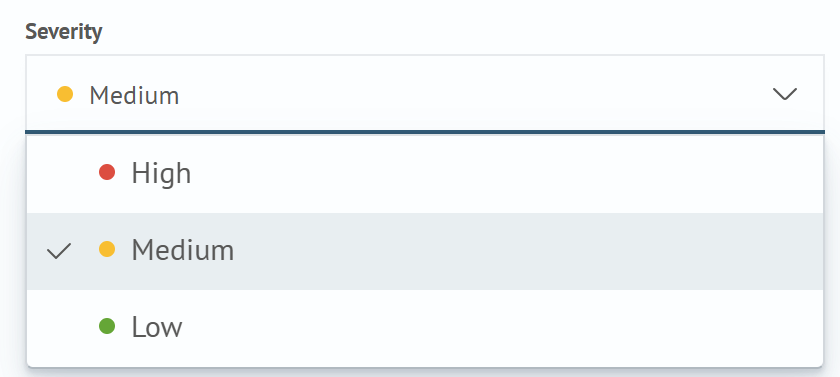
Severity
If necessary, you can add severity by selecting the corresponding level from the dropdown list.
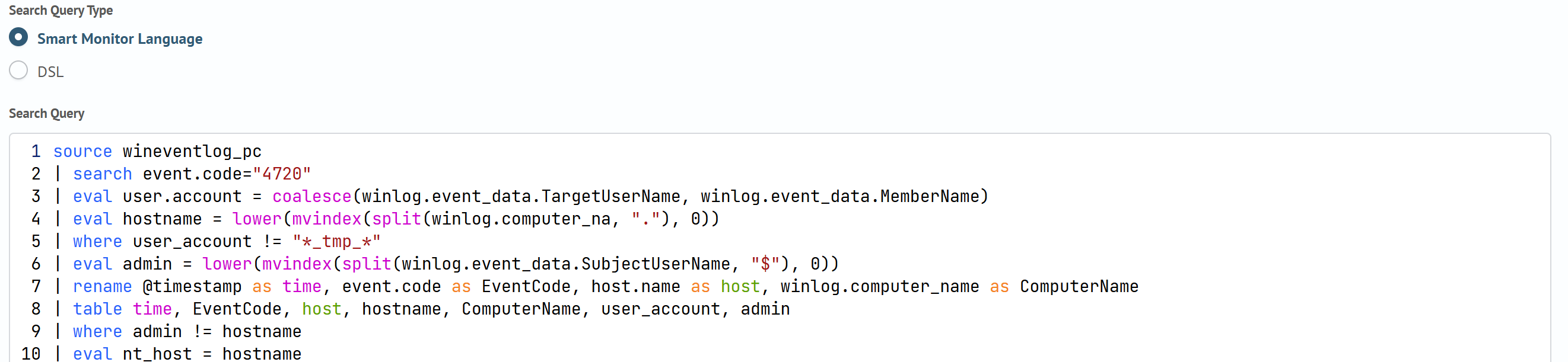
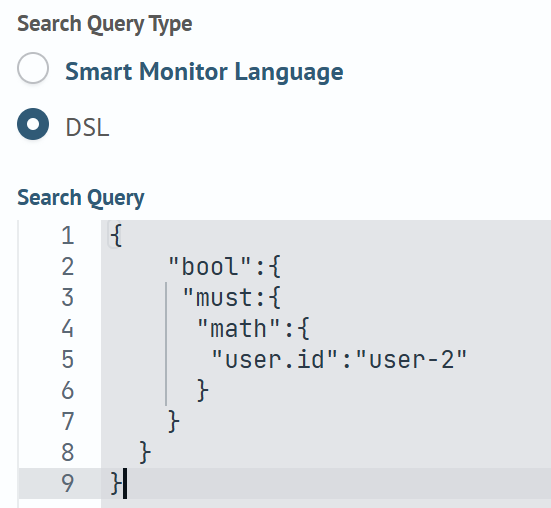
Search Query Type and Search Query
You need to select the search query type and specify the query in the corresponding format.
Example of an SAFL query:
Example of a DSL query:
Time Interval
You need to set the time interval, or leave the default option.

Execution Schedule
You need to set the execution schedule - Cron expression.

Setting up Additional Parameters
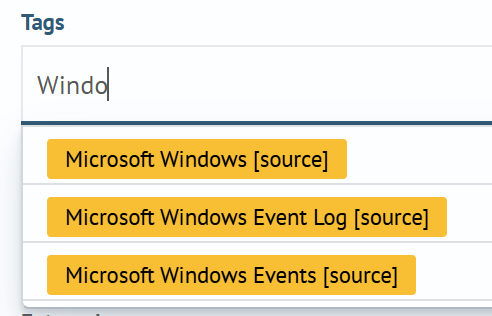
Tags
You can additionally select tag(s) from the list.
Wikilogs Articles
You can additionally specify article(s) from the list.

Additional Materials
You can specify a link to an additional resource.

Saving
To save, click Save in the lower right corner of the window.

Result of Parameter Setup
After saving the settings, a new rule will be added to KWC. An example of the result is shown in the screenshot below:
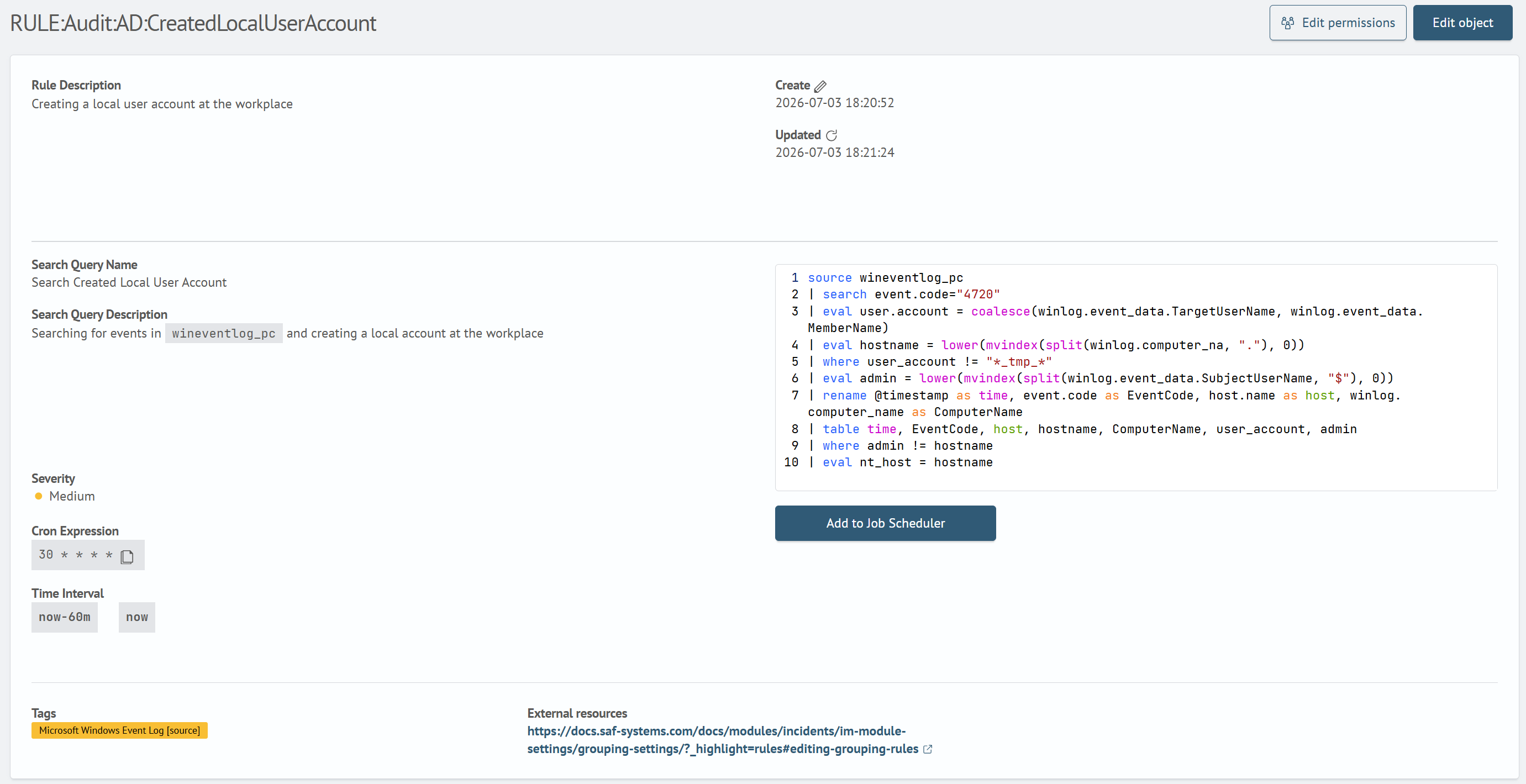
In addition to viewing the rule, you can also add a task to Job Scheduler based on the selected rule. To do this, under the query panel, click Add to Job Scheduler, after which a task creation window will open where values from the rule will be substituted.
Additional Settings
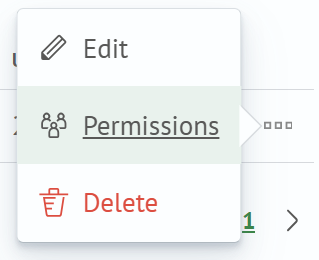
For a rule, you can configure access rights similar to other Search Anywhere Framework objects through the context menu located to the right of the object and accessible by clicking the three dots symbol. You can also configure access rights by opening the required rule, after which click Permissions in the upper right corner of the window.
Editing
To edit an existing rule, you can select the Edit item through the context menu on the right or open the required source, after which click Edit in the upper right corner of the window.

Deletion
To delete an existing rule, you can select the Delete item through the context menu on the right.