Task Scheduler in SP Mode
If the Service Provider is enabled and the Server SP, mode is selected, the scheduler automatically switches to SP mode.
For more details on configuring the Service Provider, see the corresponding article.
SP Mode extends the scheduler's functionality, so before using it, familiarize yourself with the basic operation of the Task Scheduler.
Task List in SP Mode
Task List
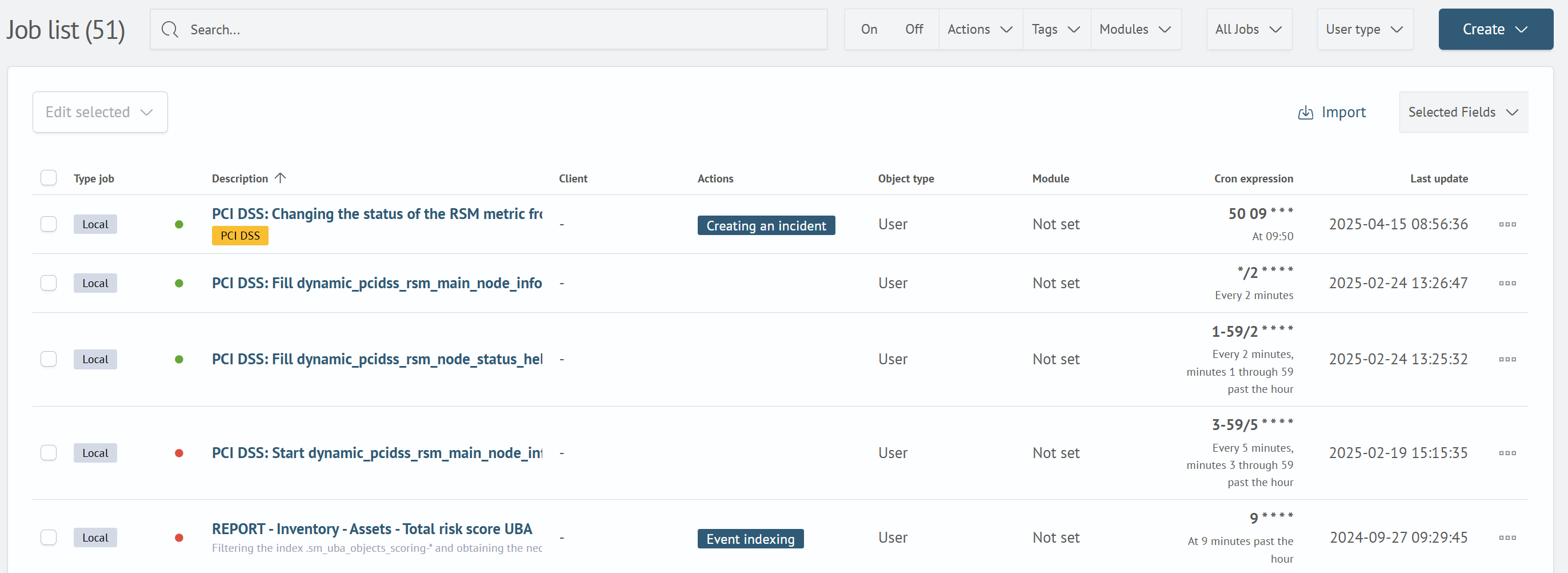
The main functional extension affects the primary section.
Two columns are added to the table:
- Task Type - the type of task (SP, Local)
- Client - the clients (child clusters) on which the search is run
Filtering
In SP mode, the ability to filter SP and local tasks separately becomes available.
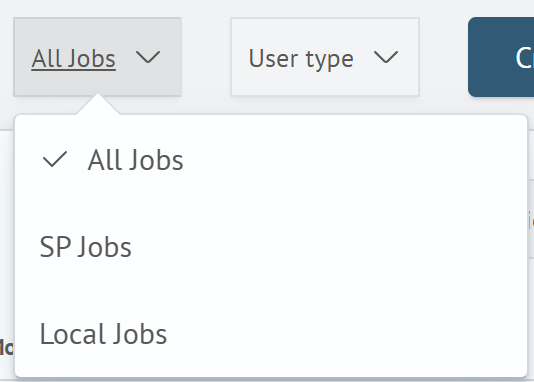
- All Jobs - displays both SP and local tasks together
- SP Jobs - displays only tasks related to the central Service Provider cluster
- Local Jobs - displays only tasks related to the local Search Anywhere Framework installation
Creating a Task
In SP mode, the ability to create SP tasks appears.
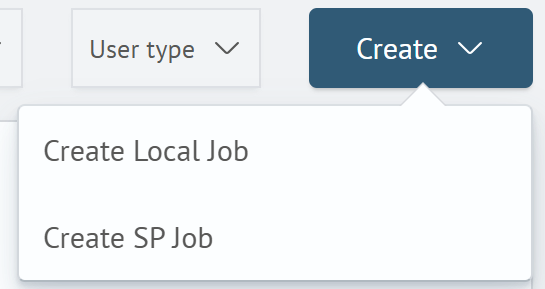
When you click the Create button, a choice between two buttons is presented:
- Create Local Job - creates a task that will run directly on the local Search Anywhere Framework installation
- Create SP Job - creates a task that will be associated with the central Service Provider cluster
SP tasks can run searches on child clusters and perform active actions based on the received results.
SP Task Creation/Editing Page
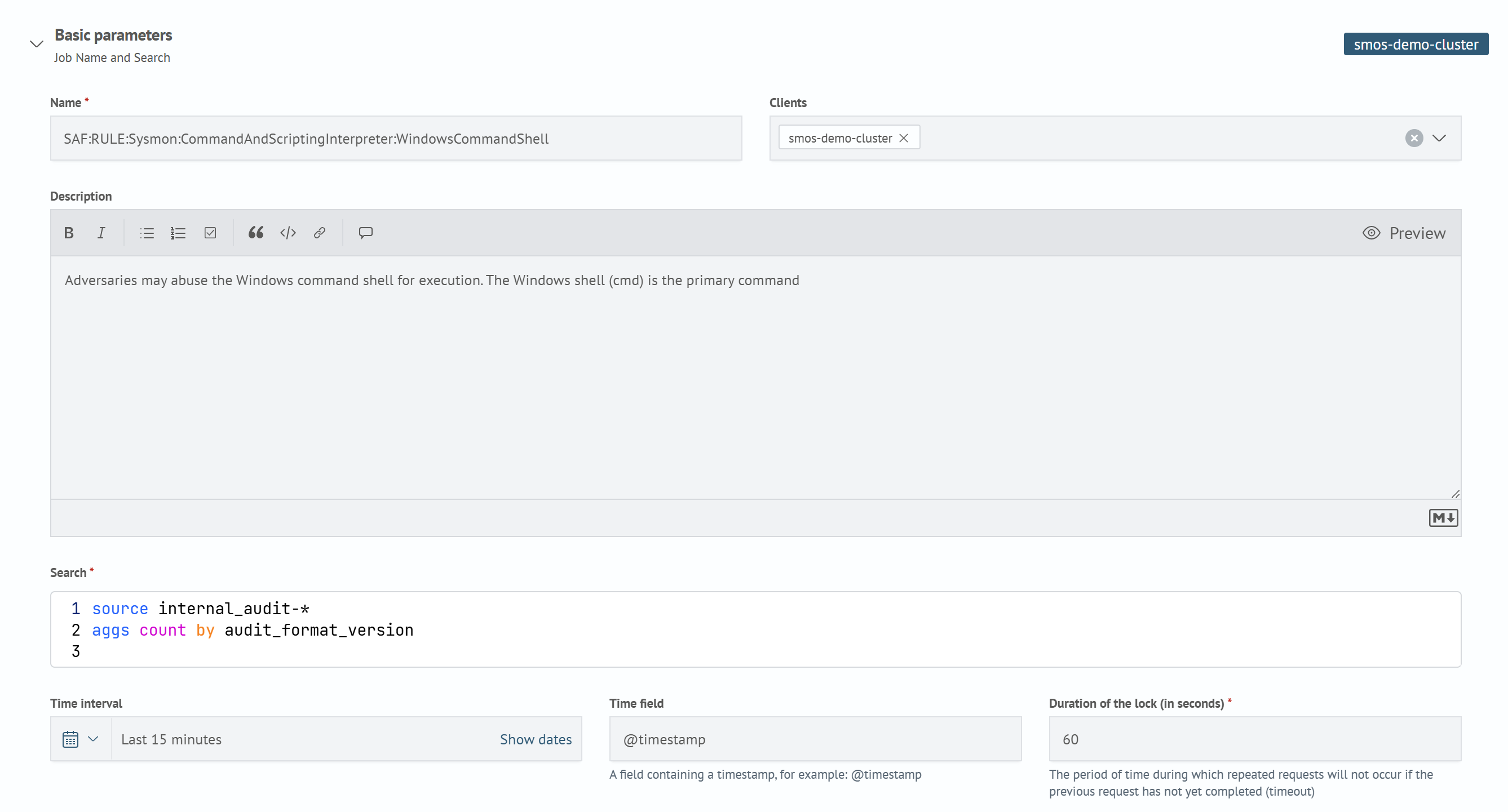
In SP mode, on the Main tab, in the Basic parameters section, a Clients field appears for specifying child clusters.
To learn how to configure Clients for the Service Provider, see the corresponding article.