Metric
A metric is a ASM element that displays the state of a monitoring object at the first level. It is calculated based on data source logic and can assume various states depending on configured thresholds.
A metric can be calculated using confidence intervals. Confidence intervals are calculated in search queries, for example, using functions like avg or stdev.
Purpose
A metric allows you to:
- track indicator indicators (including both numeric and string values)
- track indicator indicators broken down by indicator objects
- analyze changes in individual indicator indicators
- fine-tune the correspondence between indicator values and metric states
- fine-tune the influence of individual metric states on the indicator state
Managing Metrics
To create and edit metrics, go to settings via the control panel by clicking the "Gear" button.
The following actions are available for metrics:
- create a metric
- enable/disable a metric
- edit a metric
- configure access rights
- clone a metric
- delete a metric
You can also access the metric settings through its context menu (right-click). For more details, see the relevant section node actions.
Create a Metric
To create a metric, click the New Metric button, fill out the form in the opened modal window, and click Save.
Edit a Metric
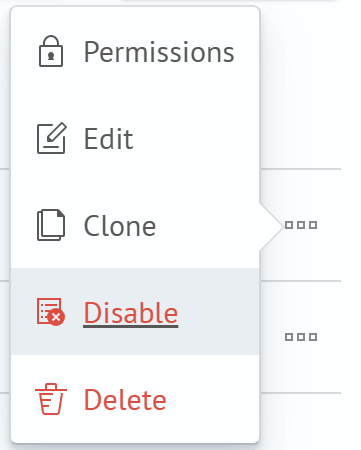
To edit a metric, click the "three dots" icon in its row in the list and select the Edit item in the menu. A modal window with the metric editing form will open.
Enable/Disable a Metric
The green or red dot to the left of the metric name shows its current state: enabled or disabled.
To enable or disable the calculation of metric values, click the "three dots" to open the context menu, then select disable or enable depending on the original state.
Delete a Metric
To delete a metric, click the "three dots" opposite the relevant metric, then select Delete in the context menu and confirm the deletion.
Example Metric Configuration Forms

