Model
A model is a container for grouping multiple monitoring objects together, even if they have no explicit dependencies on each other.
Purpose
A model allows you to:
- let's also translate this: group indicators and metrics together for isolated work
- configure a role model for access control
Managing Models
To add quick access to models in the navigation menu:
- Go to the Menu Settings section:
Main Menu-Settings-Management-Navigation - Find the ASM module in the list, expand it, and click the
Add Sectionbutton - Fill in the required fields according to the parameters below
| Field Name | Content |
|---|---|
| Element Type | Page |
| Module Name | models-list |
| Module Title | Models |
| Enable Display | Yes, the flag must be enabled |
Creating a Model
You can create a model in several ways:
First Method
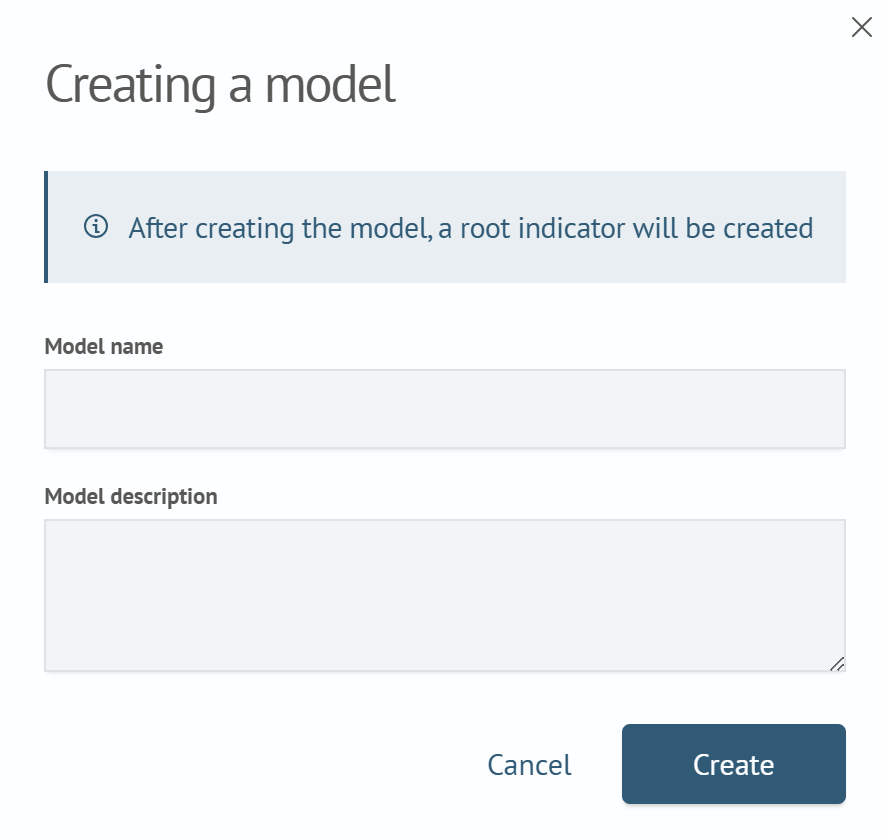
To create a new model, use the control panel by clicking the + Create a model button.
Second Method
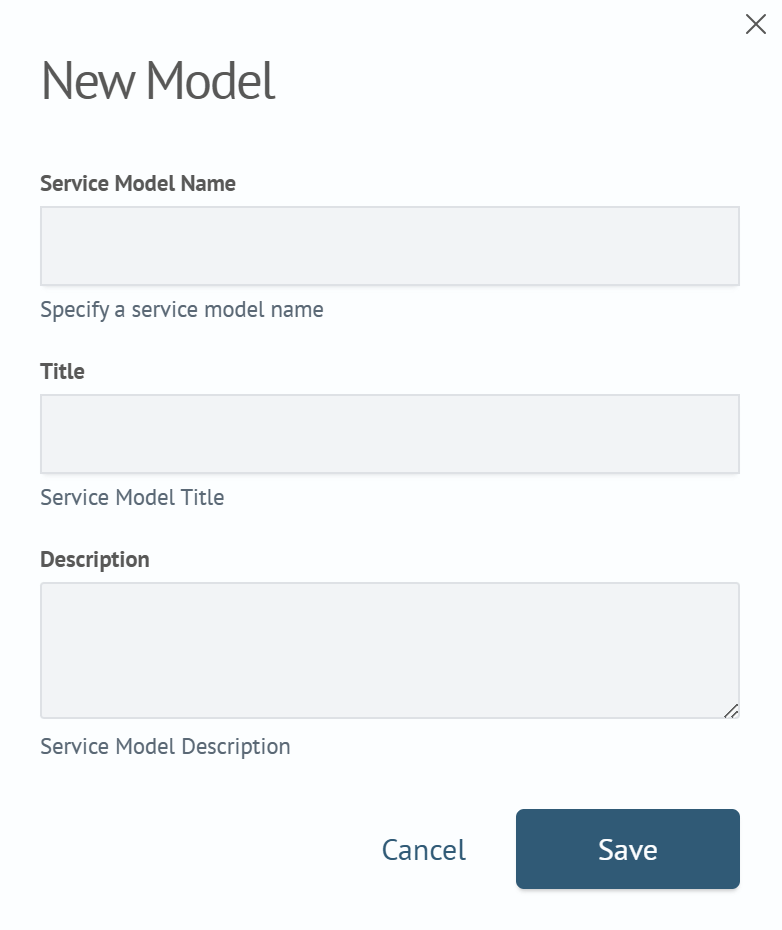
Click the "Gear" button in the control panel, then in the opened modal window, select the New Model action in the Models section.
When creating a model via the settings button, specifying a system name is available. This field is optional: if left empty, the system will assign a unique system name to the model automatically.
Editing a Model
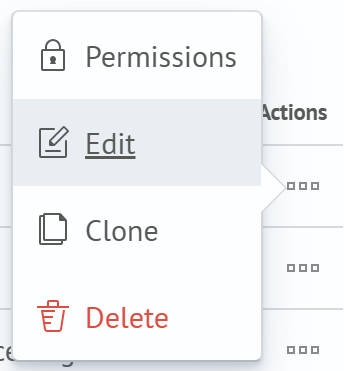
To edit a model via the navigation menu, go to the Asset Service Model - Models section. In the opened model list window, find the desired one, click the "three dots" icon in its row, and select the Edit item in the menu.
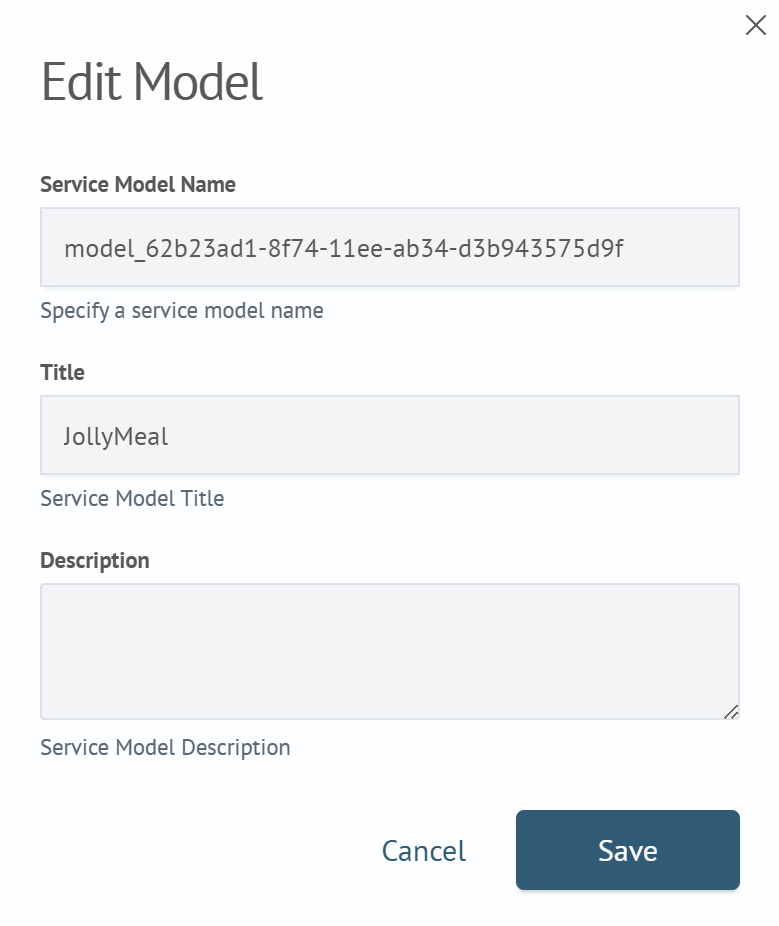
The editing interface provides the ability to change the system name, title, and description.
Setting Permissions
To configure permissions via the navigation menu, go to the Asset Service Model - Models section. In the opened model list window, find the desired one, click the "three dots" icon in its row, and select the Permissions item in the menu.
A modal window will open where you can set permissions for the roles available in the system.
To set the same permissions for multiple models:
- Select the desired models by checking the boxes next to their names
- Click the
Edit Selectedbutton and select thePermissionsitem in the menu that appears
Deleting a Model
To delete a model, click the "three dots" icon in its row again and select the Delete item in the menu.
To delete multiple models:
- Select the desired models by checking the boxes next to their names
- Click the
Deletebutton, which becomes active after selection