Indicator
An indicator is an abstract representation of a system component or a logical group of system components, which allows configuring evaluation metrics and tracking the cumulative influence of metrics and other components on their state.
Purpose
An indicator allows you to:
- add important metrics for monitoring
- analyze changes in metric states
- group components together
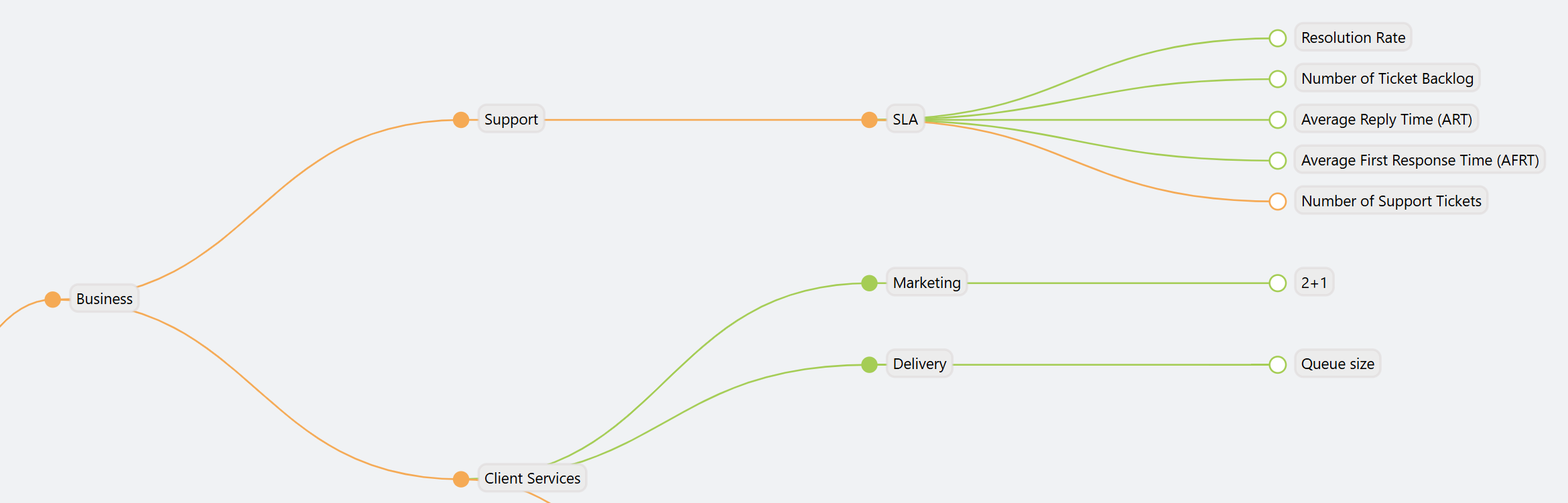
Indicators and their relationships are represented as a tree:
Managing Indicators
To add quick access to indicators in the navigation menu:
- Go to the Menu Settings section:
Main Menu-Settings-Management-Navigation - Find the ASM module in the list, expand it, and click the
Add Sectionbutton - Fill in the required fields according to the parameters below
| Field Name | Content |
|---|---|
| Element Type | Page |
| Module Name | indicators-list |
| Module Title | Indicators |
| Enable Display | Yes, the flag must be enabled |
Creating an Indicator
To create an indicator via the navigation menu: go to the Asset Service Model - Indicators section. After clicking the New indicator button in the list interface, a modal window opens containing two sections: General Settings and Indicator Settings.
General Settings:
| Field | Description |
|---|---|
| Service Model | Dropdown list of all available models |
| ID | System name |
| Tittle | Indicator name |
| Description | Brief description of the indicator |
| Level | Dropdown list of available levels |
Dependency Settings:
| Field | Description |
|---|---|
| Metric or Indicator | Dropdown list of all available metrics and indicators |
| Influence | Parameter setting the calculation priority for dependent metrics and indicators (where 1 is the lowest influence and 10 is the highest) |
Alternative methods for creating an indicator:
- Via the PCM tree control panel: open the settings menu by clicking the "Gear" button
- Via the indicator context menu: right-click (RMB) on any existing indicator. For more details, see the relevant section node actions
Editing an Indicator
To edit an indicator via the navigation menu, go to the Asset Service Model - Indicators section. In the opened indicator list window, find the desired one, click the "three dots" icon in its row, and select the Edit item in the menu.
An alternative method for editing an indicator is available via the control panel in the ASM tree. To do this, click the "Gear" button.